

To view this post in full (including screenshots) please click here.
In Part 1. of this series we Installed vNext, in Part 2 we started to configure it. In Part 3,
we configed Beta 2 some more by enabling Active Directory discovery
methods, adding some site system roles, configuring the computer client
agent and client push settings and finally doing a manual client
installation to verify it all worked, in Part 4
we looked installed an application using Application Management and the
Software Catalog and Software Center features of SCCM 2012. Our next
task is to add WSUS and then add some additional roles which we’ll use
later on in this series (Windows Updates and Data Migration in OSD).
Perform the following on the vNext server as SMSadmin
Step 1. Add the WSUS administration Console
We’ll need the WSUS administration console installed as part of the
Software Update Point role installation in the next step, so start Server Manager
and click on Roles, Add Roles. Select Windows Server Update Services
and a window will pop up asking to add role services required for Windows Server Update Services (IIS Dynamic Content compression), click Add Required Role Services
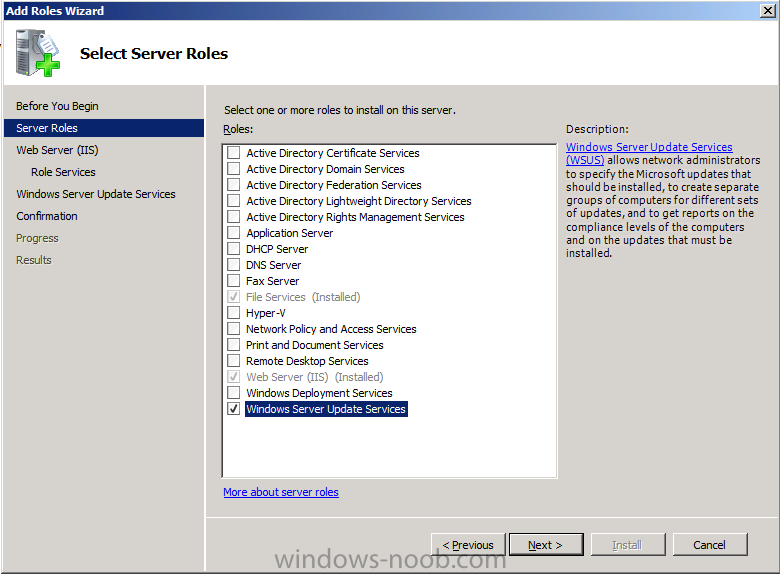
click next through the wizard, you’ll see the Select Role Services window appear, click next again
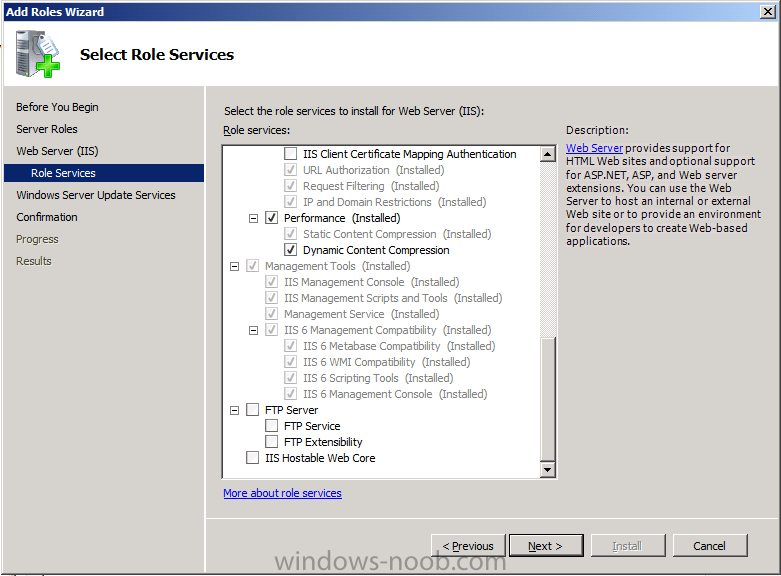
at the confirmation click Install, the WSUS role will be downloaded and
if you are on 3G like me that’ll take a bit of time, so take a break and
have a cup of coffee 
after a while you’ll see the Welcome to Windows Server Update Services 3.0 SP2 setup wizard appear click next
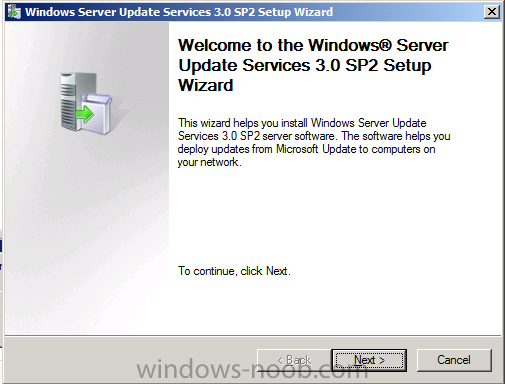
To install WSUS SP2 you must accept the terms of the EULA, which are
probably hidden behind the active windows, so in your system tray find
it and click on it to show the EULA otherwise you’ll be twiddling your
thumbs for a long time wondering whats going on…
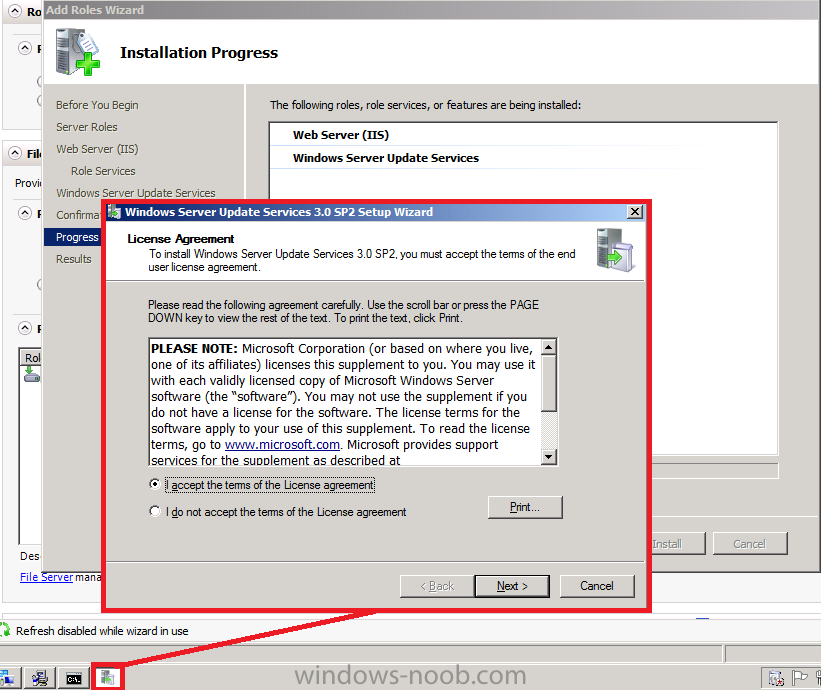
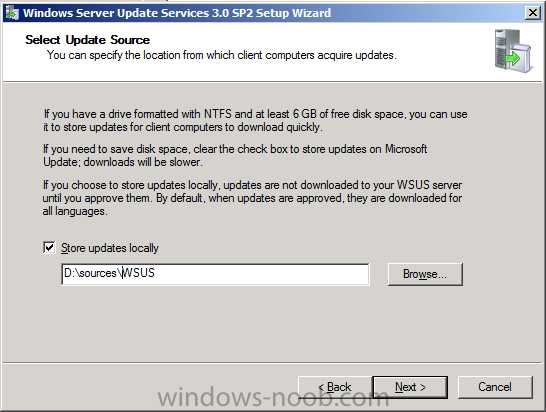
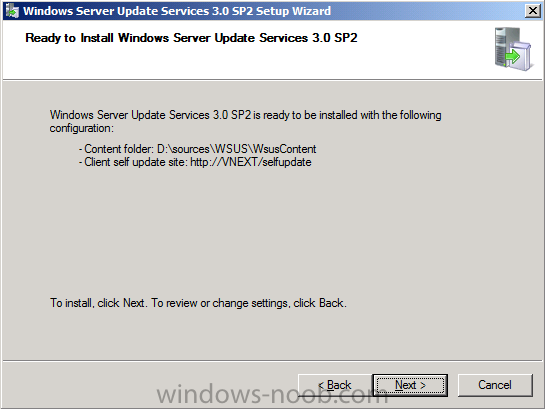
click accept and then choose where to store the updates locally, I selected D:\sources\WSUS
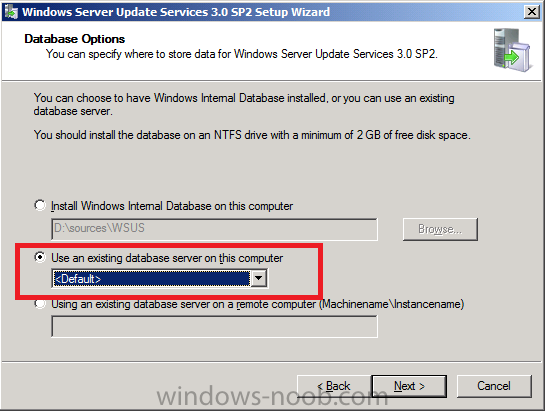
for database options choose Use an existing database server on this computer, click next
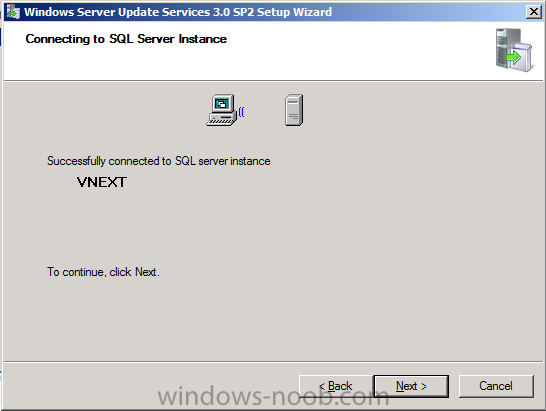
it will connect to your VNEXT sql server instance, click next
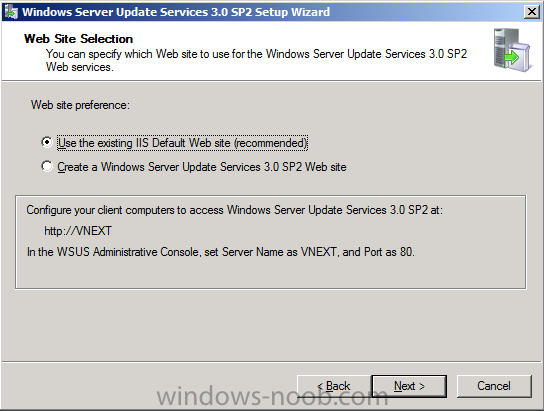
accept the Use an existing Default website
at the ready to install WSUS, click next
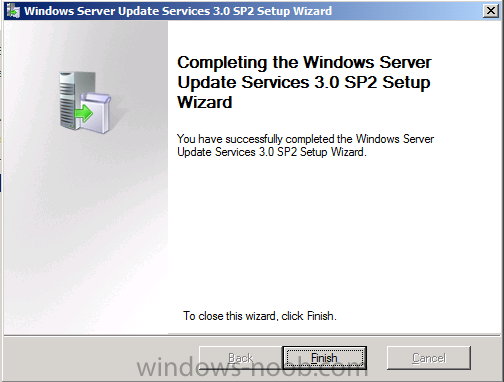
click Finish when done.
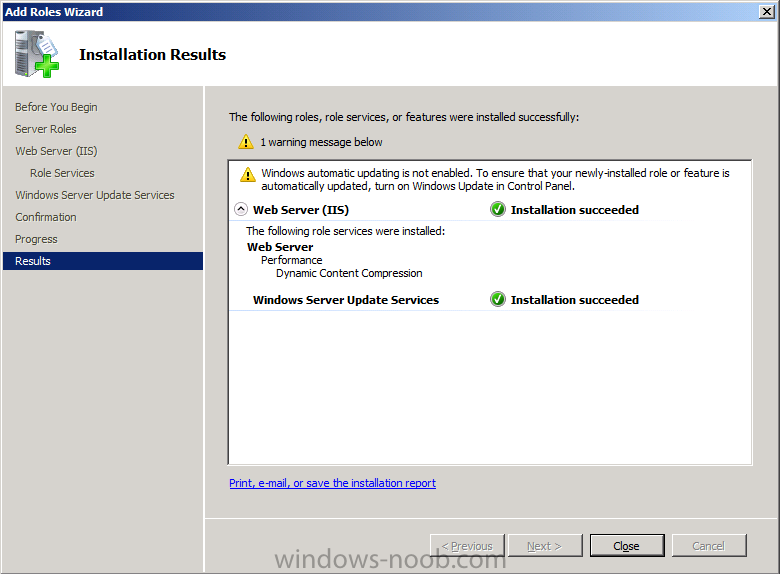
and close the Roles Wizard
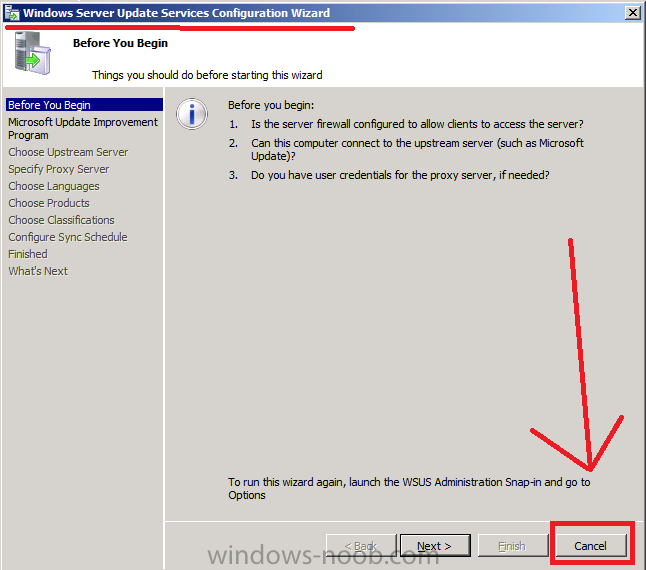
followed by Cancel you must cancel the Windows Server Update Services Configuration Wizard
To view this post in full (including screenshots) please click here.
