

Introduction
In a previous blog post, First looks at Windows 365 Reserve, I explained what this new offering was, how to enable it and the expected outcome. However, I also pointed out the odd choice of having to wait 7 days after adding users to a AAD group targeted with a provisioning policy, prior to being able to provision or use the Windows 365 Reserve Cloud PC.
Note: The 7 days delay is the initial delay that you the admin must wait BEFORE you can provision a Windows 365 Reserve Cloud PC for any of the assigned users. In other words, it’s forcing you the Admin, to be proactive, and I discussed that at length in the previous blog post on this subject. If you look at the Can be provisioned after column in the Cloud PC users tab of the provisioning policy, it will list Ready for Provisioning once that initial 7 days delay has passed.
You can review the other posts in this mini-series below.
- First looks at Windows 365 Reserve
- Following up on Windows 365 Reserve <- you are here
- Final thoughts on Windows 365 Reserve
In this post, I’ll take a look at what additional options are available after those initial 7 days delay have passed, and look at the Windows 365 Reserve Cloud PC itself. So let’s get started.
First, let’s find the Windows 365 Reserve provisioning policy in Intune. It’s listed below with a Name of Windows 365 Reserve in the list of Provisioning policies that I’ve previously configured in my tenant. Interestingly, the Image for it is listed as Automatic, and the License type is Reserve.
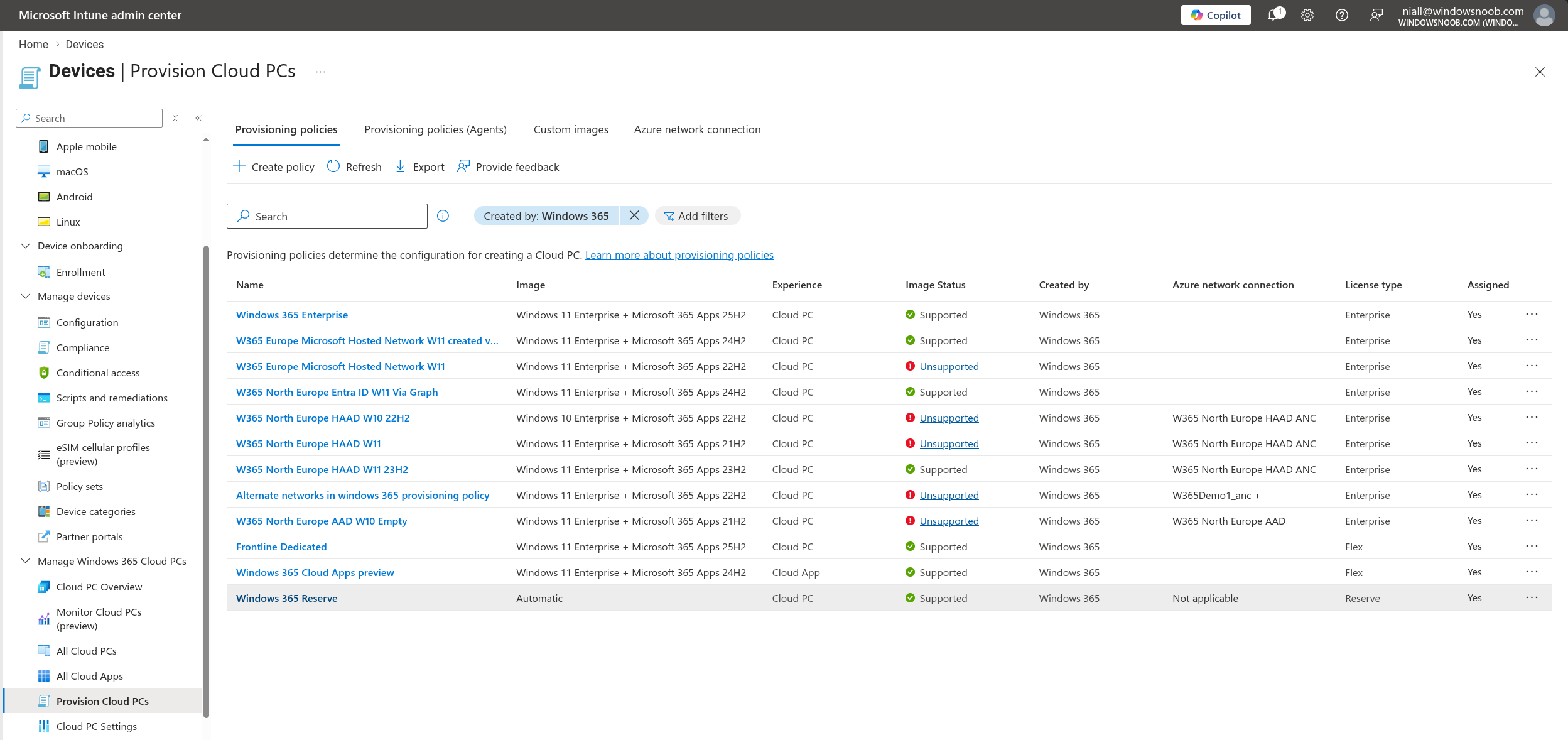
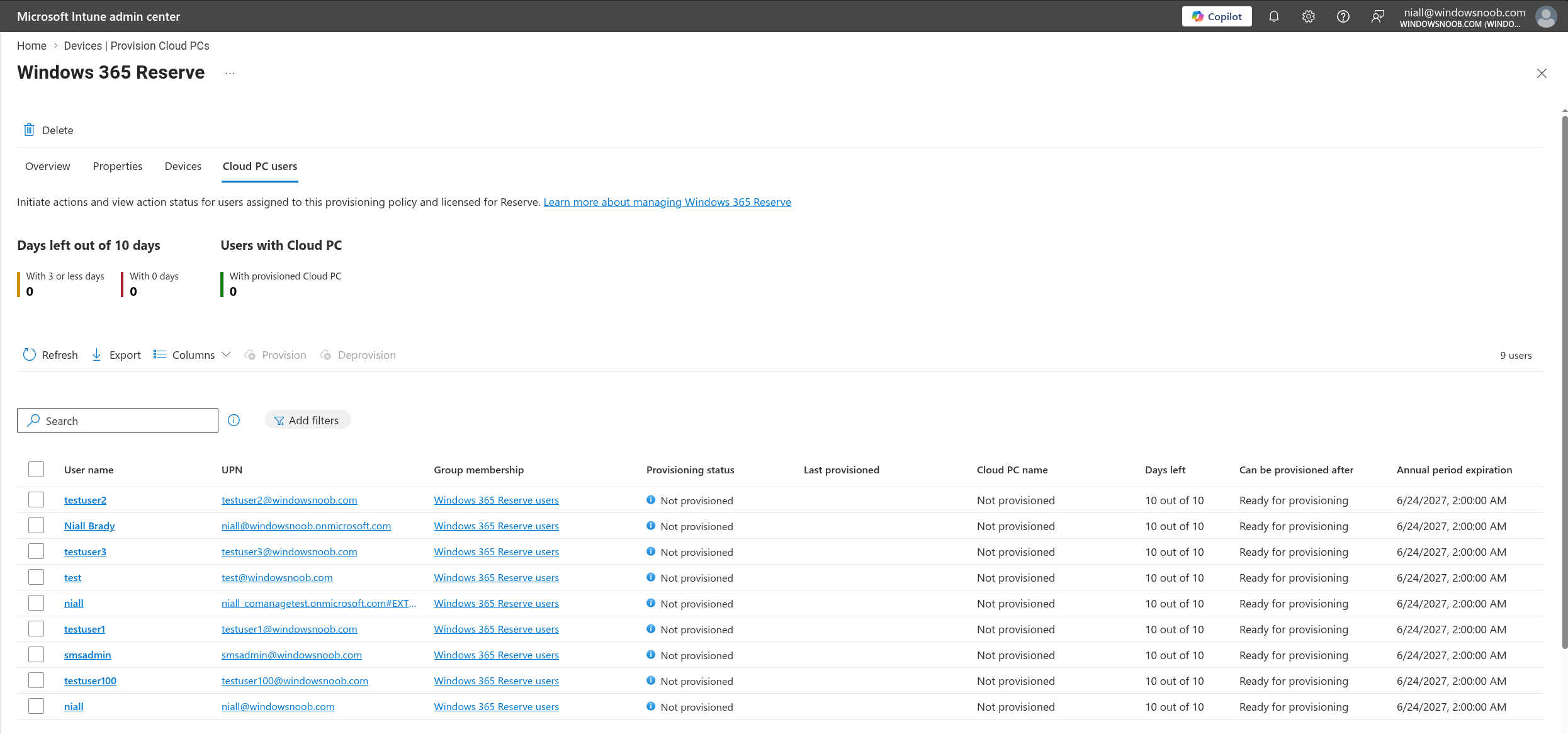
After clicking on that Windows 365 Reserve provisioning policy, we can see all the users that are assigned to that policy (they are in a group that the policy was assigned to) by clicking on the Cloud PC users tab.
This is where the action happens with Windows 365 Reserve.
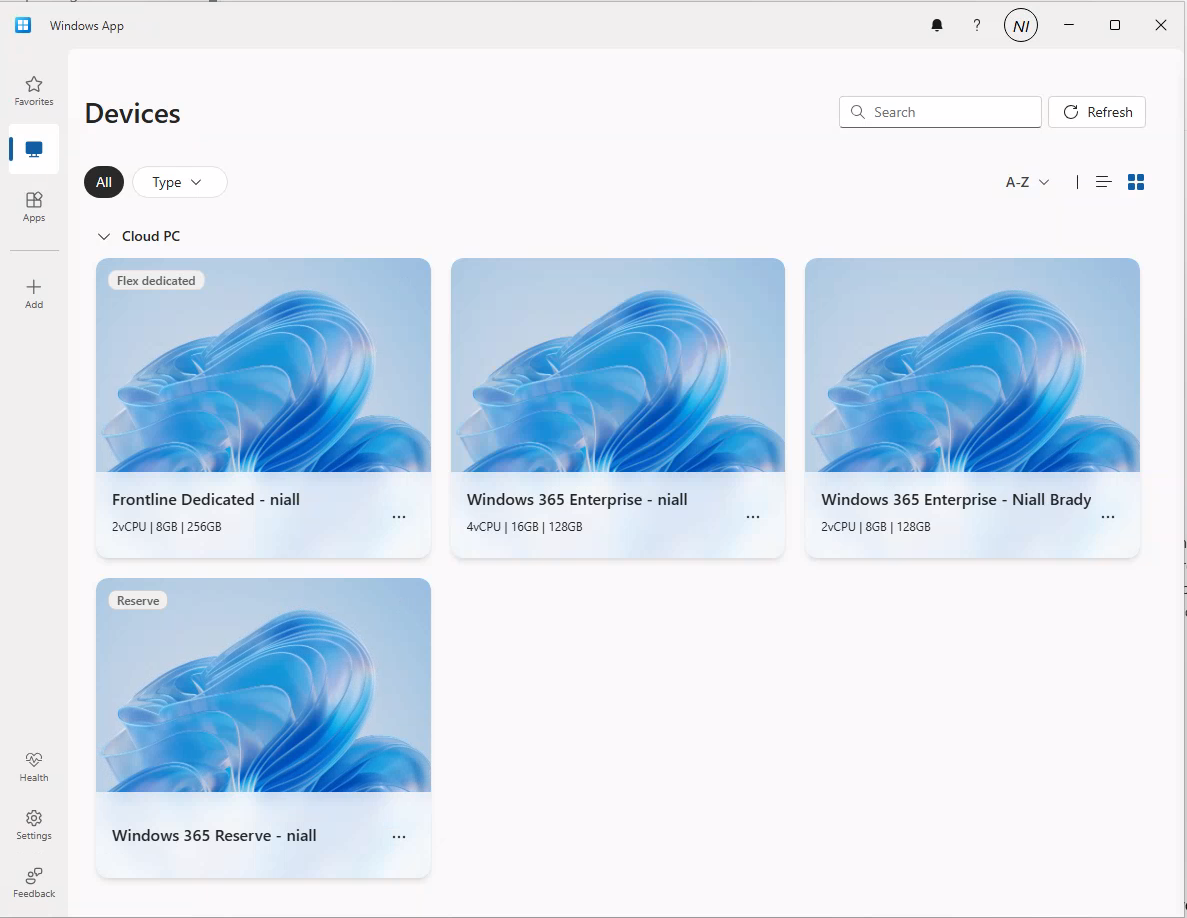
But before we do, let’s also remind ourselves what the Windows 365 Reserve Cloud PC assigned to this user looks like in the Windows app.
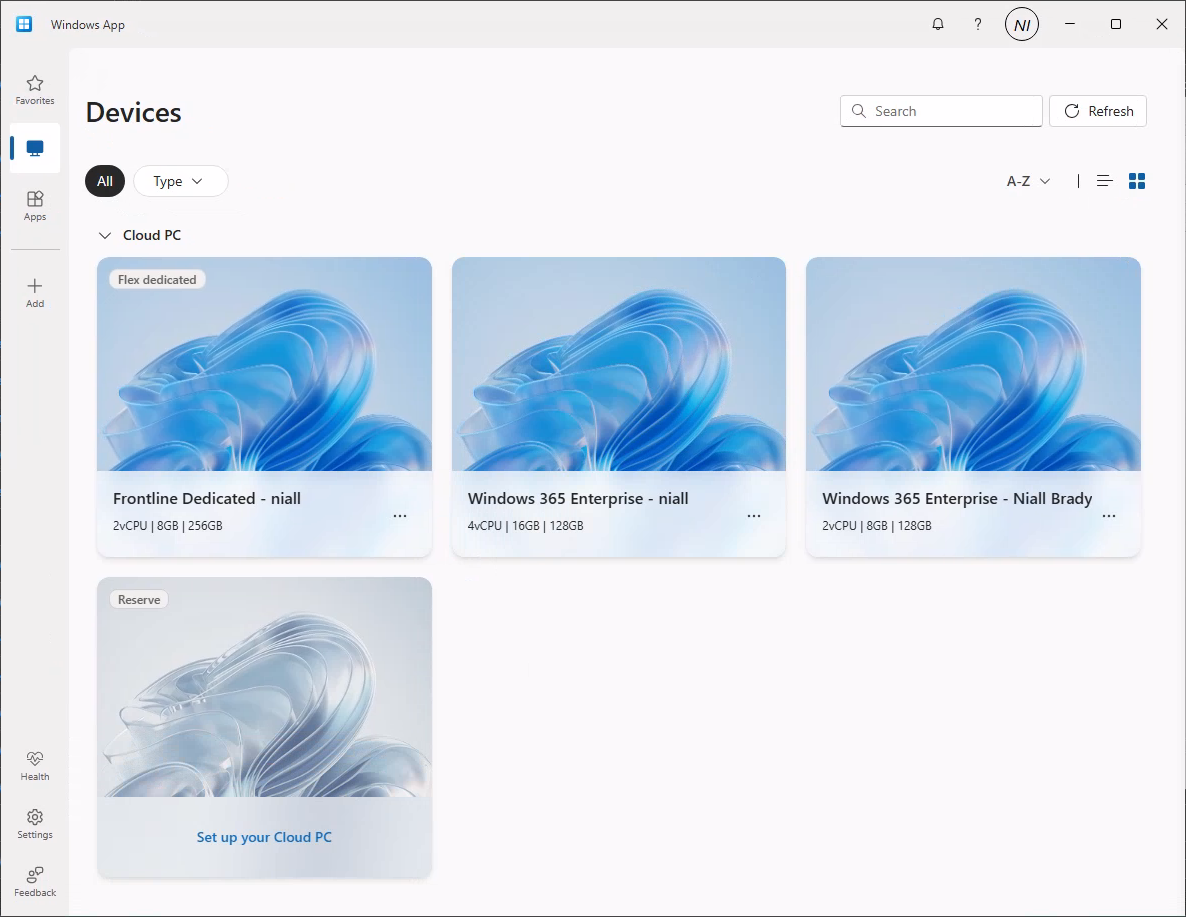
As you can see, it has a ‘Set up your Cloud PC’ clearly visible in the Reserve Cloud PC. This is because we enabled a setting in the previous blog post allowing the user to provision their Reserve Cloud PC themselves if desired (after the initial 7 days delay of course). Here’s that setting.
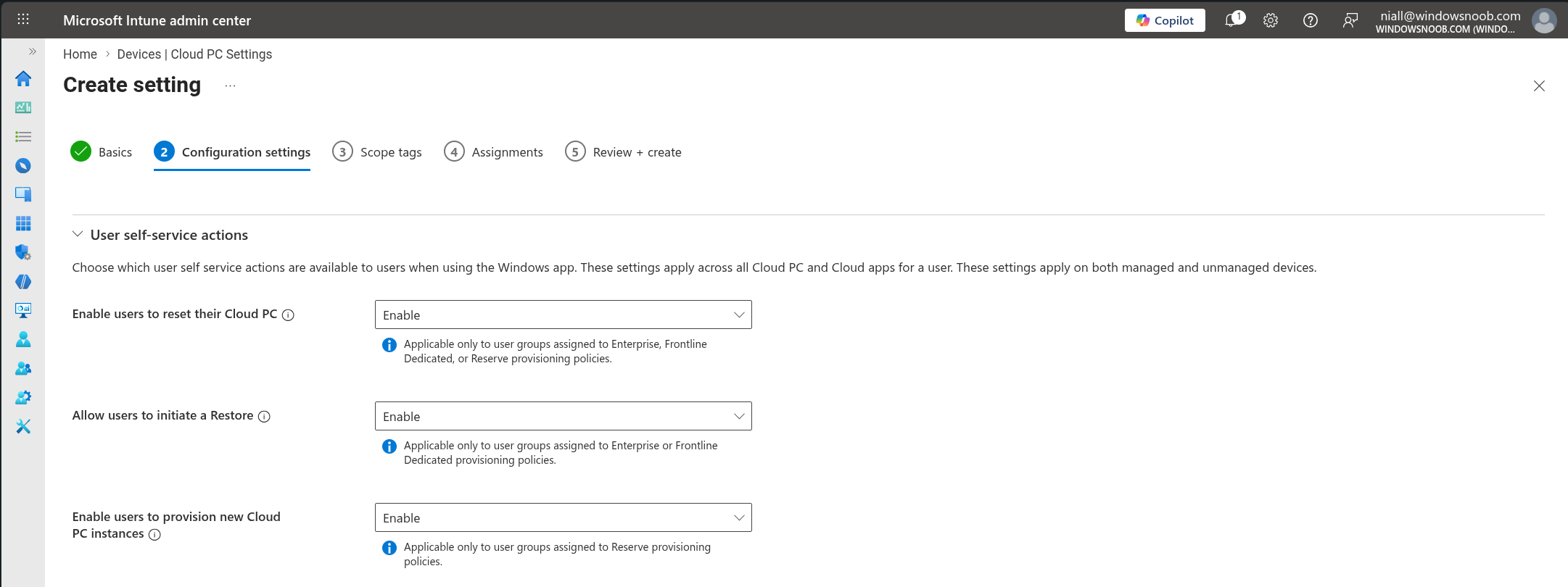
So technically speaking, we could provision the Windows 365 Reserve Cloud PC as an admin via the Cloud PC users tab in the Windows 365 Reserve provisioning policy, or we could ask the end user to set it up via the Set up your Cloud PC option in the Windows app.
Provisioning a Windows 365 Reserve Cloud PC as an admin
For now, let’s see what happens when we select a user targeted by the previously created policy as an admin in Intune, via the Cloud PC users tab.
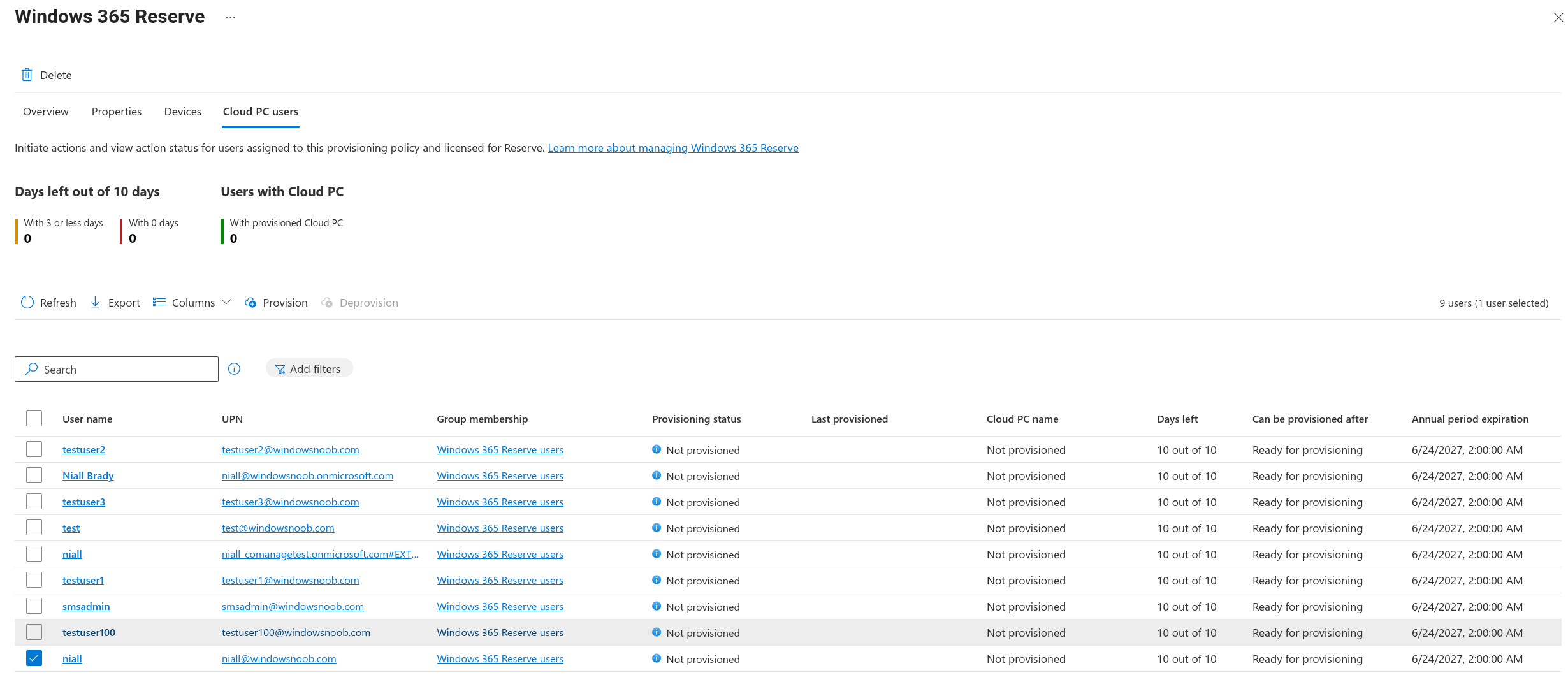
Doing the above, after the 7 days License ‘wait or delay’ has passed, now allows you to select an available option for that user, and the option is Provision. Previously (before those 7 days wait pass) this option was greyed out (not available).
Deprovision is not yet available as we have not yet provisioned a Windows 365 Reserve Cloud PC.
Note: You can also select multiple users to provision them in bulk for those users at the same time.
So let’s click on Provision. Once done, you get a popup telling you that users will be able to use their Cloud PC via the Windows app once it is fully provisioned.
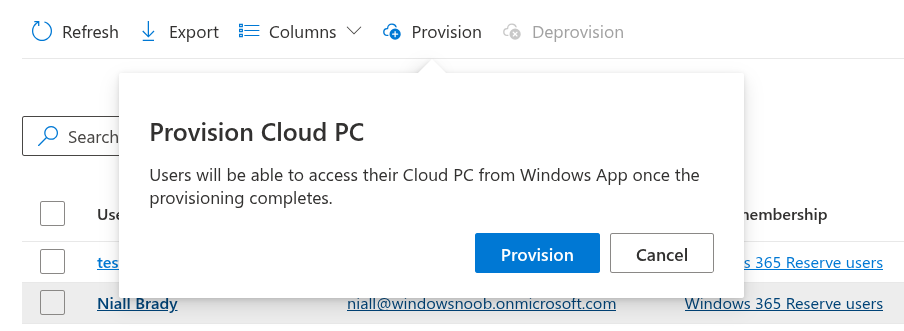
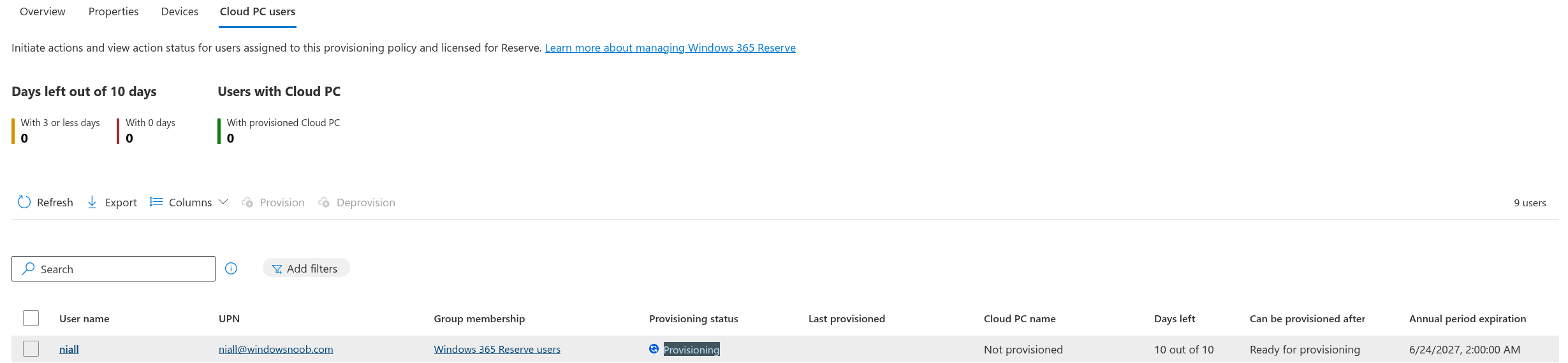
Clicking Provision again, starts that process and the provisioning status for that user, should change to Provisioning.
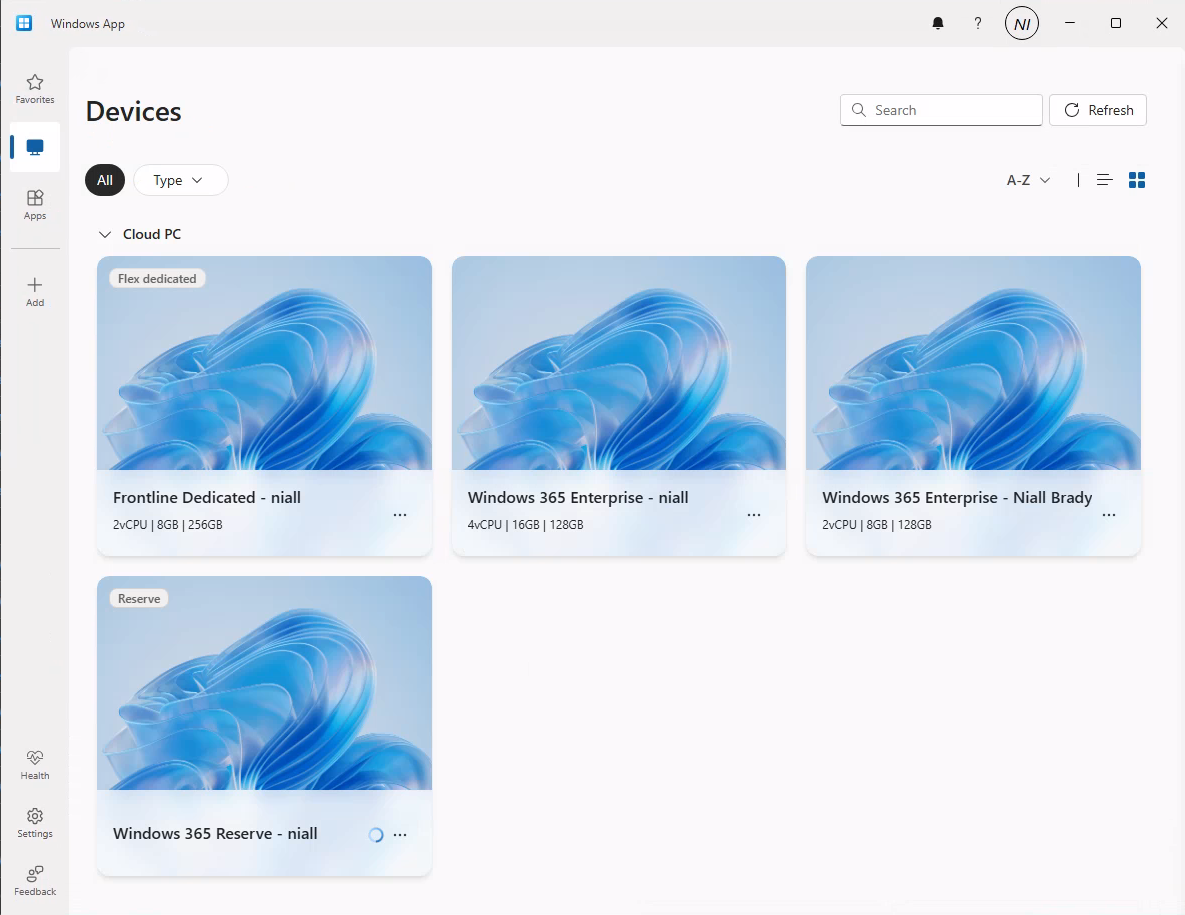
Now in the Windows app, after clicking the Refresh icon (top right), we can see that the Windows 365 Reserve Cloud PC has changed colour, and has a spinning Windows circle to indicate that it is provisioning.
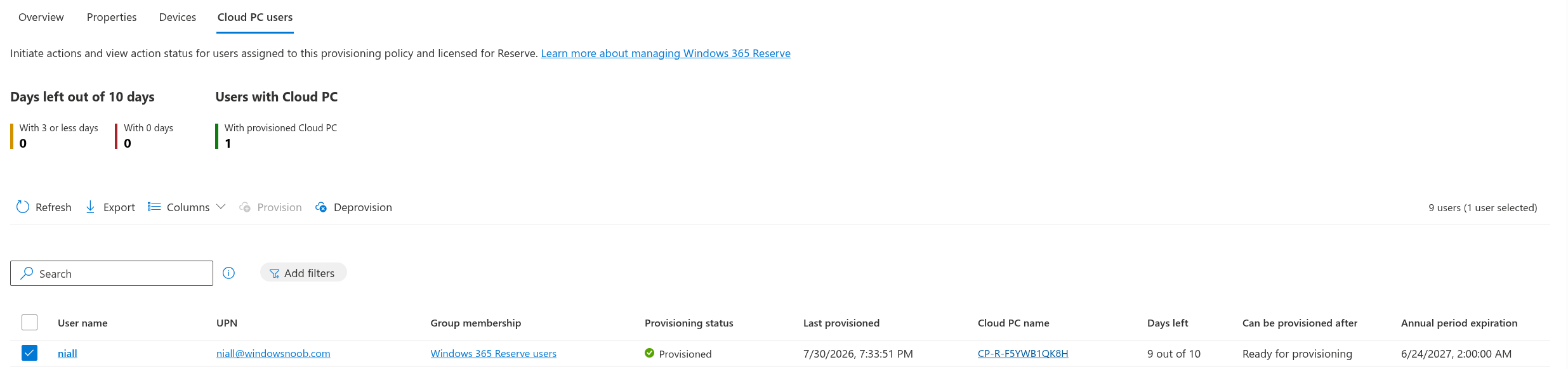
After some time the Cloud PC is provisioned and the Provisioning status changes to Provisioned in Intune.

Interestingly, the Days left column, shows 9 out of 10 for the newly provisioned Windows 365 Reserve Cloud PC, which means that the user only has 9 more days of usage of this disaster recovery Cloud PC.
Additionally, in the Windows app, the spinning circle to indicate it’s provisioning, is no longer present, and the Windows 365 Reserve Cloud PC looks like any other that is made available to that user.
If we go back to Intune, we can now see the Deprovision option is available for that selected user as the Cloud PC has been provisioned.
Using the Windows 365 Reserve Cloud PC
Now that the Windows 365 Reserve Cloud PC is provisioned for my user, I tried to launch it via the Windows app, but got an error.
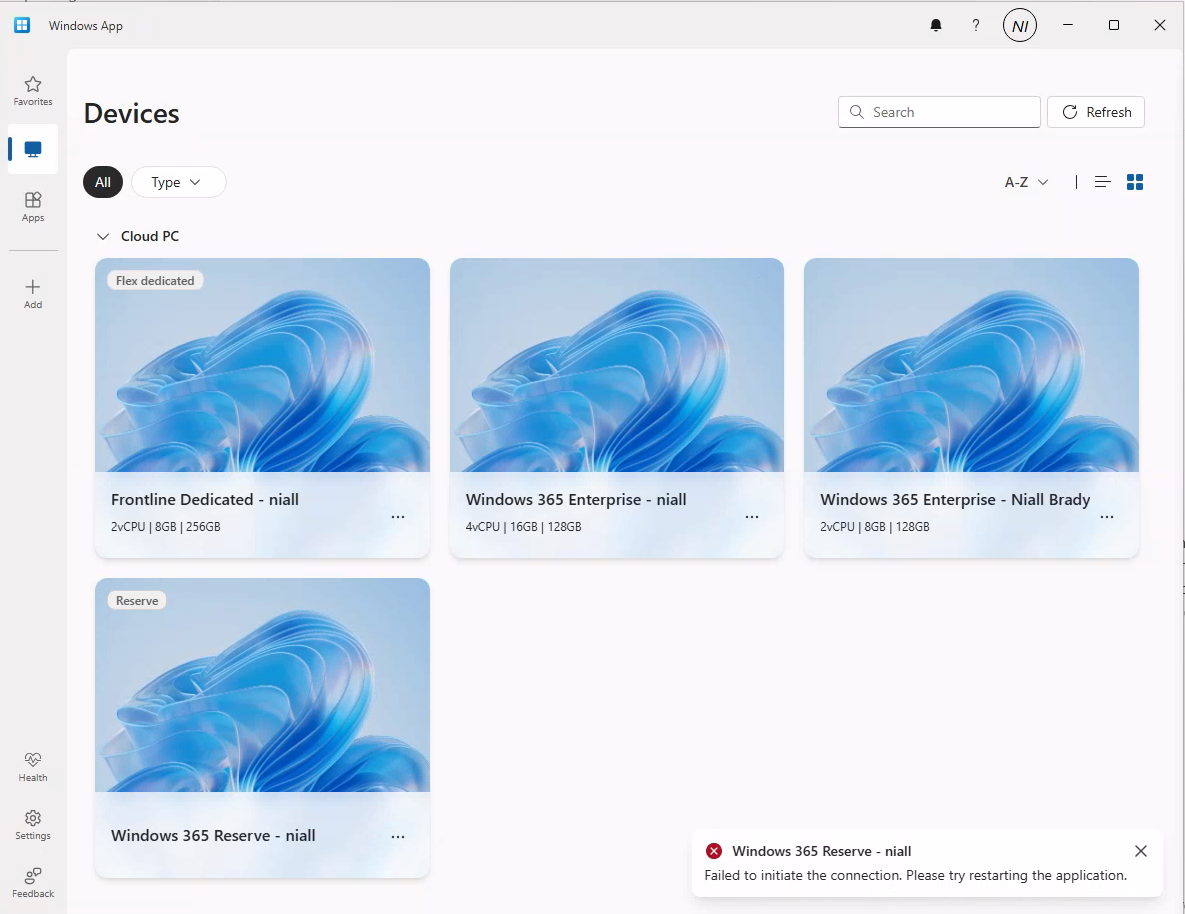
So I did that, I restarted the Windows app and it informed me twice (two popups which I didn’t get time to screenshot) that the Windows 365 Reserve Cloud PC was ready. And now, when clicking on that Cloud PC I’m prompted for credentials like any other Cloud PC.
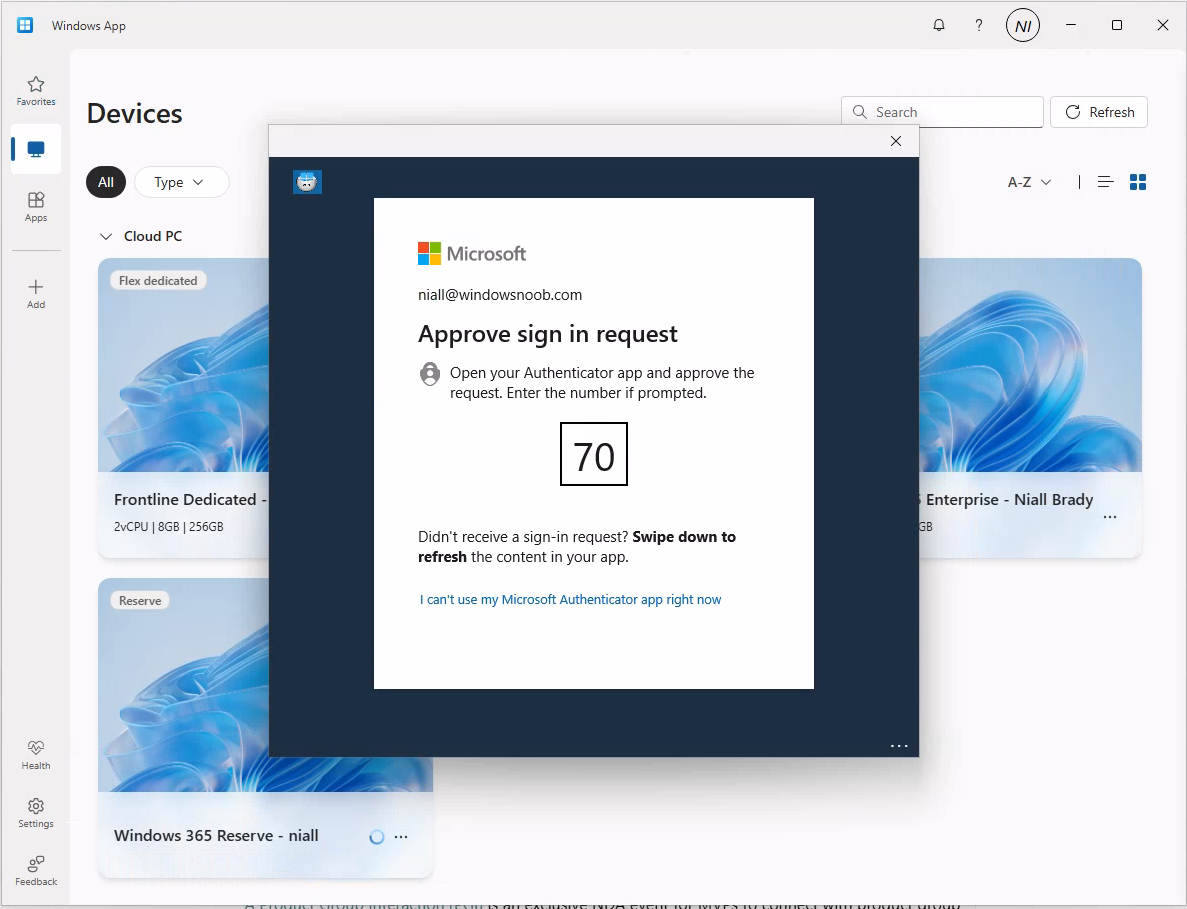
And after some time the desktop appeared.
Success.
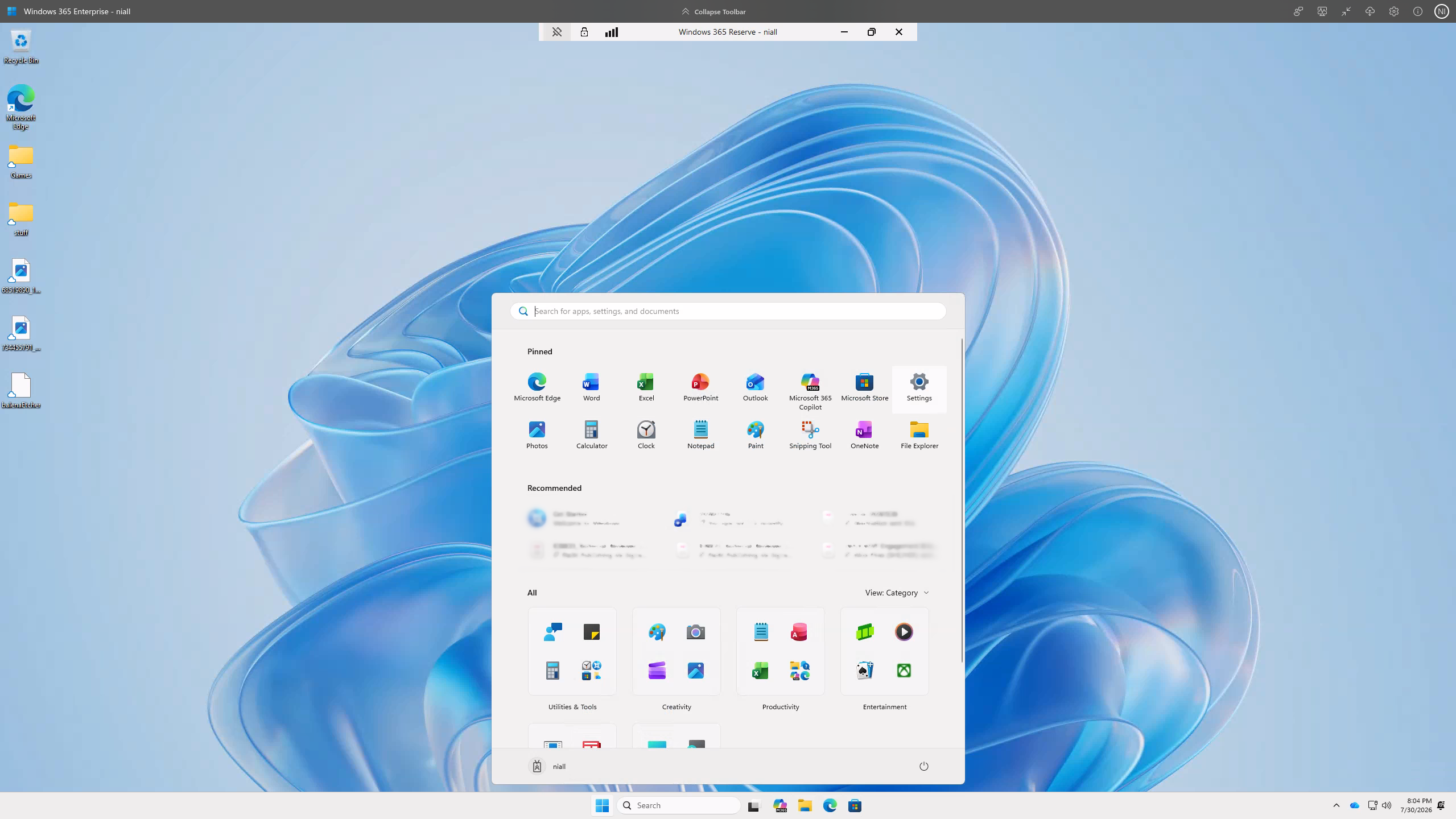
So this means that your users targeted with this provisioning policy, and after the initial 7 day ‘wait’, will be able to self provision or and Intune Admin can provision a Windows 365 Reserve Cloud PC for them, allowing them to work for up to 10 days per year in a disaster recovery scenario. That is excellent.
Summary
I’m glad I returned to Windows 365 Reserve to see what additional options were available after the enforced initial 7 day delay after creating and assigning the initial provisioning policy. I also was pleasantly surprised with how easy it was to get going once the additional steps were done in the console. However, I find it odd that the Windows app itself couldn’t launch the Windows 365 Reserve Cloud PC after it was successfully provisioned, but instead gave the user an error telling them to restart the app. To me, that needs to be fixed and I’ll pass that info directly back to Microsoft.
I hope this post helps you to understand more about Windows 365 Reserve and helps you to use it in your organization, any questions, post them below.

Hey, good article but it is incorrect about a 10 day wait for a licensed user to have a VM provisioned. It’s 7 days that you need to wait for. https://learn.microsoft.com/en-us/windows-365/enterprise/windows-365-reserve-license
oops you are correct and i even blogged it in the previous post, i’ve updated it with the correct 7 days, thank you Matthew.