

Introduction
Microsoft pushed out some new updates for Windows 365 Cloud PC’s recently and one that we thought was interesting was this one, the ability to recover a Cloud PC that was de-provisioned due to license expiration.
The de-provisioning of a Cloud PC normally means that it is unusable and unrecoverable, it’s a destructive action. However, with this new feature and as long as you have previously enabled Point-in-Time-restore explained here then you should be covered by this new ability (for Windows 365 Cloud PC Enterprise only).
In this blog post myself and my good friend Paul look at the new feature and test it out. We’ll be collaborating on more Windows 365 and Azure Virtual Desktop content during the year so stay tuned on the SCCMentor and windowsnoob websites!
The prerequisites
Before we test it, let’s look at what you need to have in place.
- To recover a previously de-provisioned Cloud PC, ensure that the expired Windows 365 licenses are renewed. The replacement licenses must be of the same SKU, so if the previous Cloud PC’s were Cloud PC Enterprise 2vCPU/8GB/128GB then the replacement license assigned must be for Cloud PC Enterprise 2vCPU/8GB/128GB.
- To recover a previously de-provisioned Cloud PC, ensure that the provisioning policy of the de-provisioned Cloud PC still exists.
- To recover a previously de-provisioned Cloud PC, ensure that assignments with the right users are assigned to the provisioning policy.
- To recover a previously de-provisioned Cloud PC, ensure the end users still exists, and are still assigned to the same Entra ID groups as before or the ones included in the policy assignments.
Testing the new feature
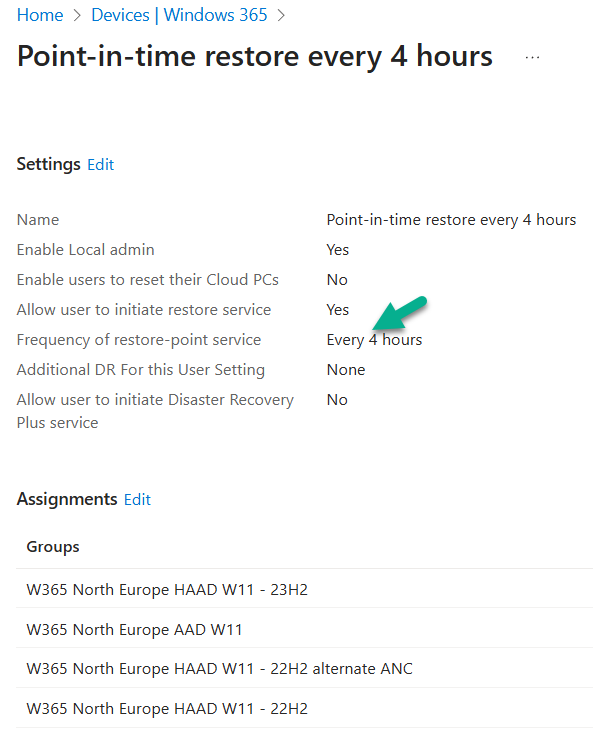
Ok now that’s all clear, let’s test it out. Before starting, we verified that our test Cloud PC had a point-in-time restore policy (User settings) applied.
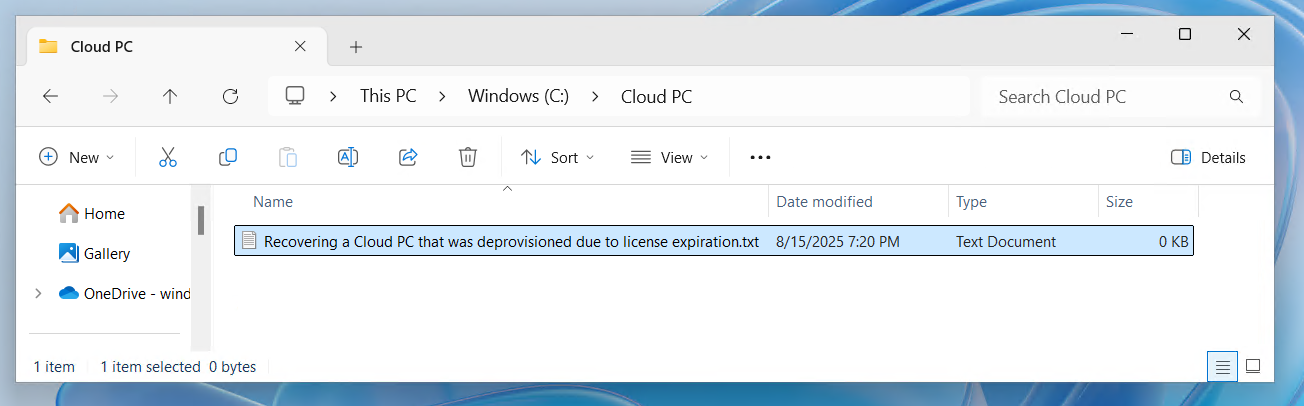
We also made sure to place a file on the Cloud PC outside of Onedrive known folders.
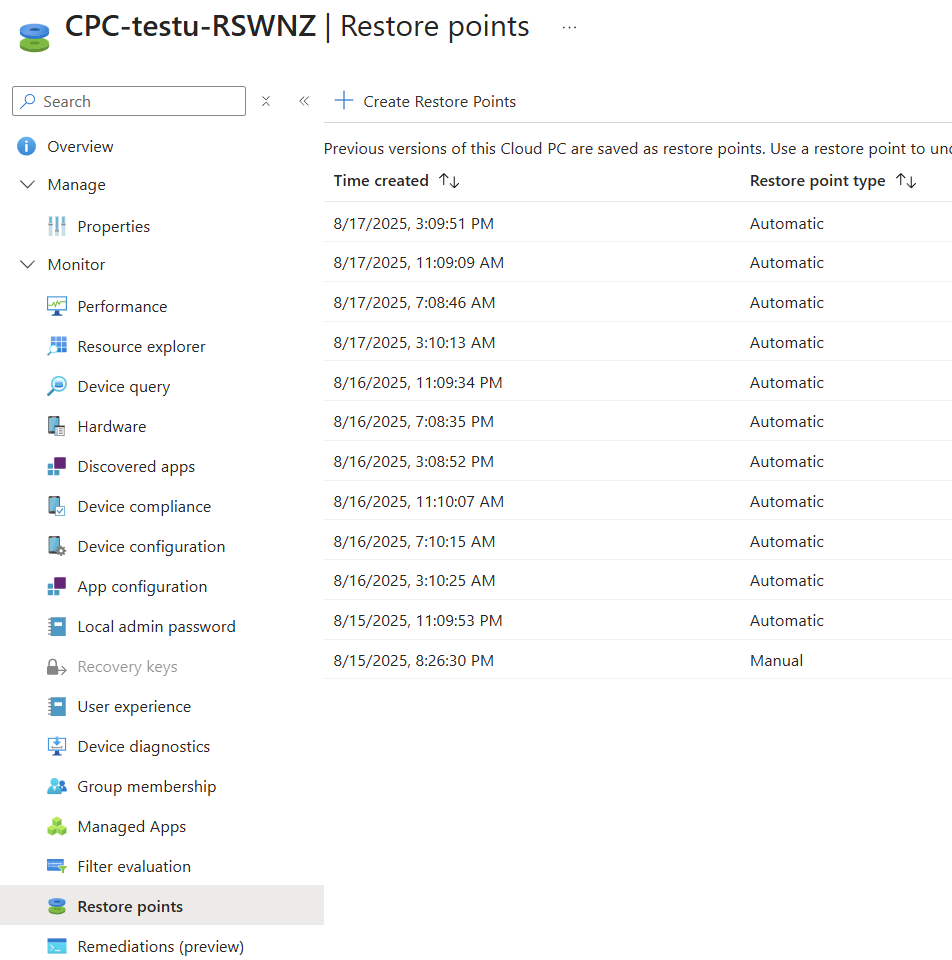
And before continuing, we verified that there was at least one backup for this Cloud PC, and there were several.
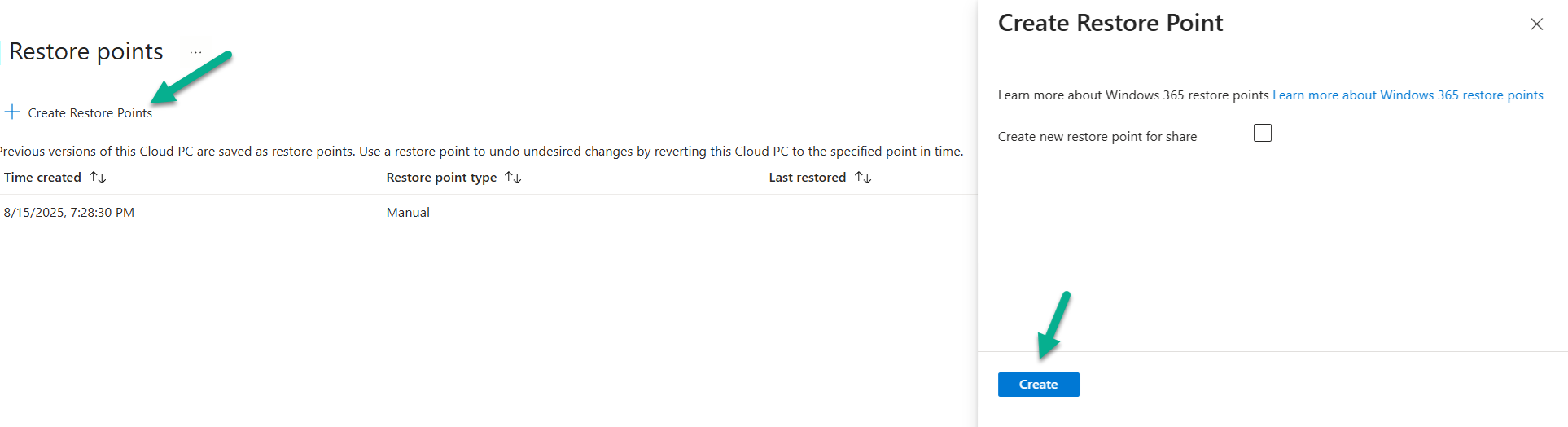
Note: If you are also testing this feature and you are doing it on a newly provisioned Cloud PC, you can click on Create restore point to create a manual restore point.
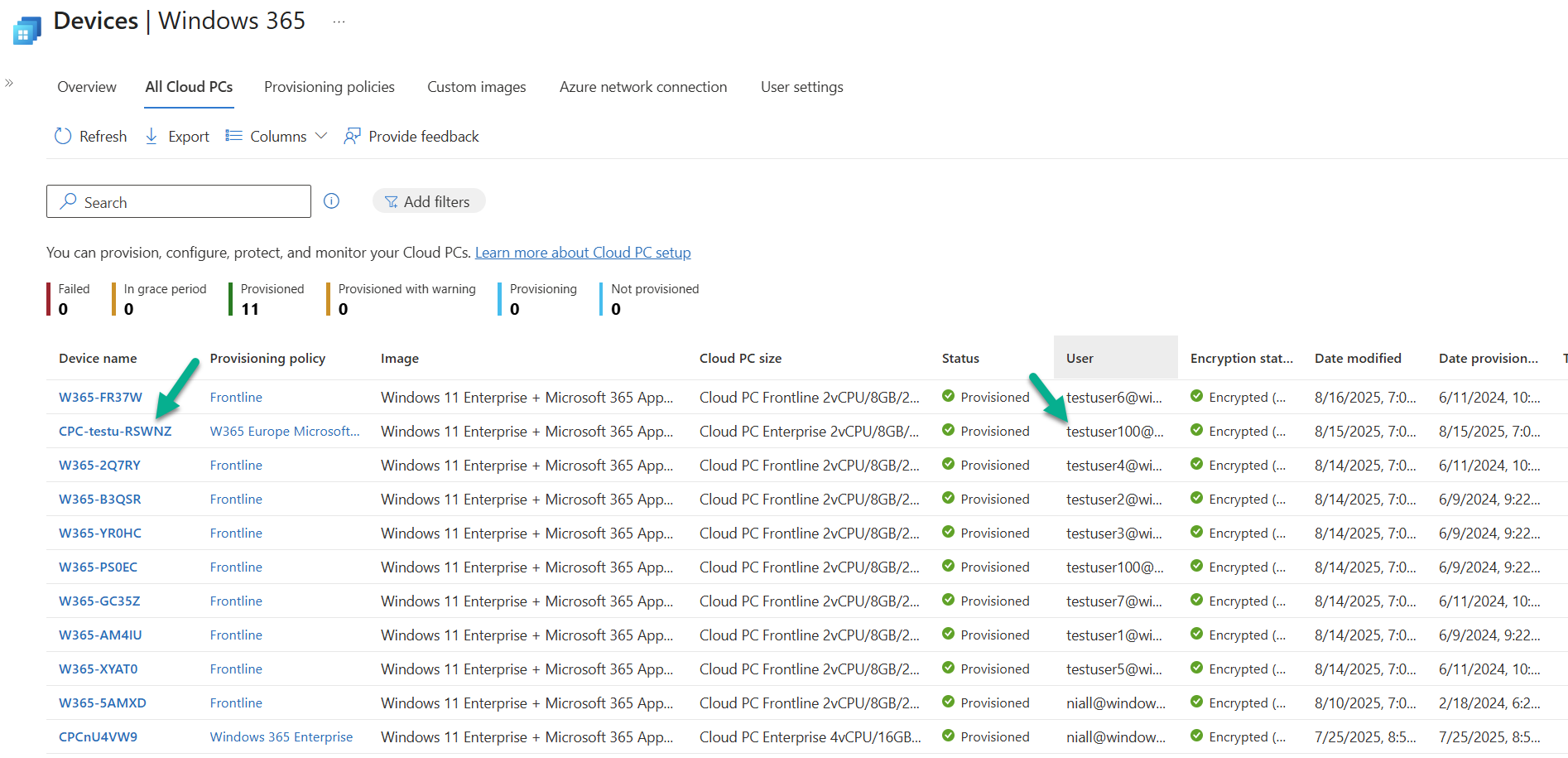
As simulating a license expiry and then re-purchasing the same license is easier said than done we’ll simulate it by deleting a user that was assigned the following Cloud PC SKU: Cloud PC Enterprise 2vCPU/8GB/128GB. Below you can see that user (testuser100@windowsnoob.com) and their respective Cloud PC.
Next, we deleted our licensed user.
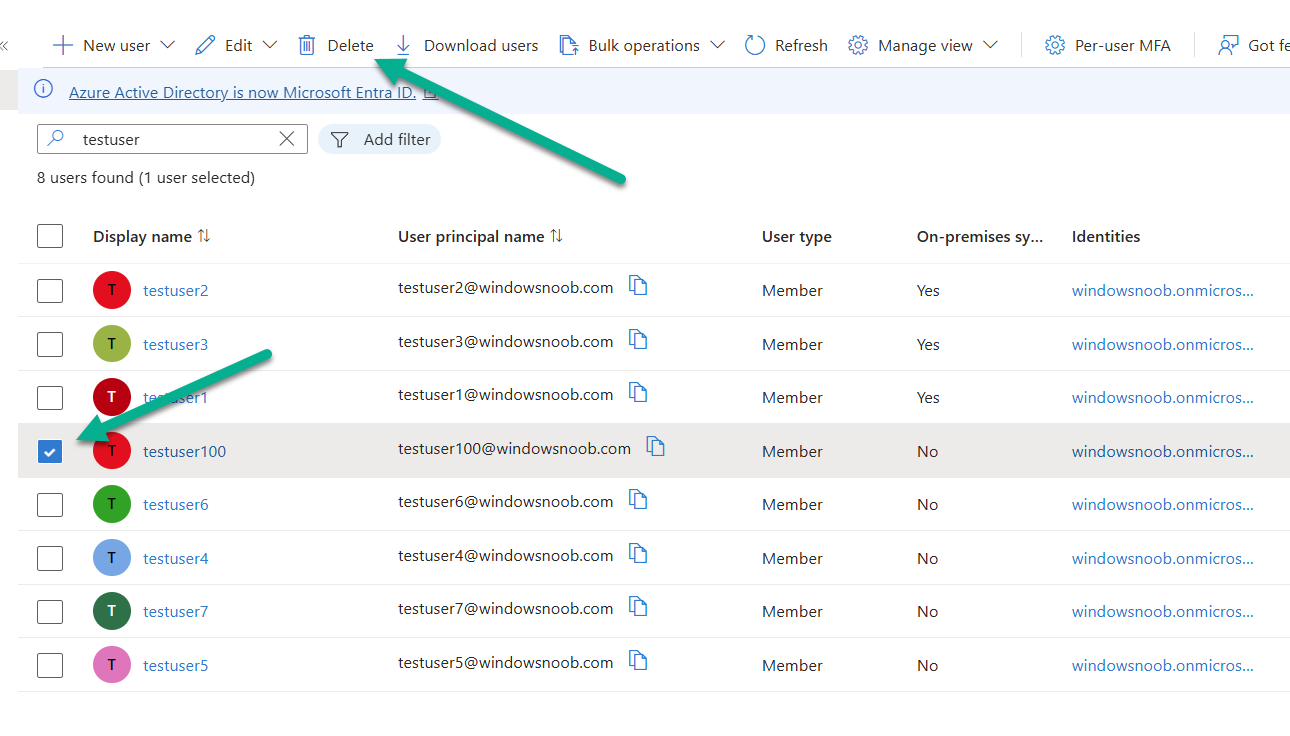
and were notified of that…

Shortly after, the status of the Cloud PC that that user was using, changed from Provisioned to In-grace period.

Clicking that In-grace period status and selecting Deprovision now, speeds up the testing process.
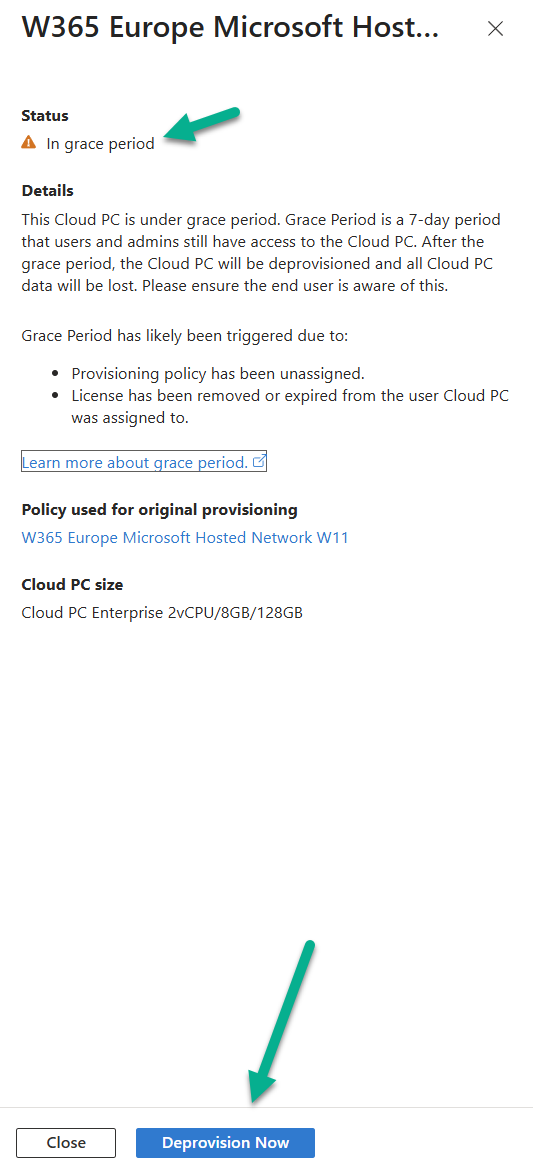
Which kick starts de-provisioning
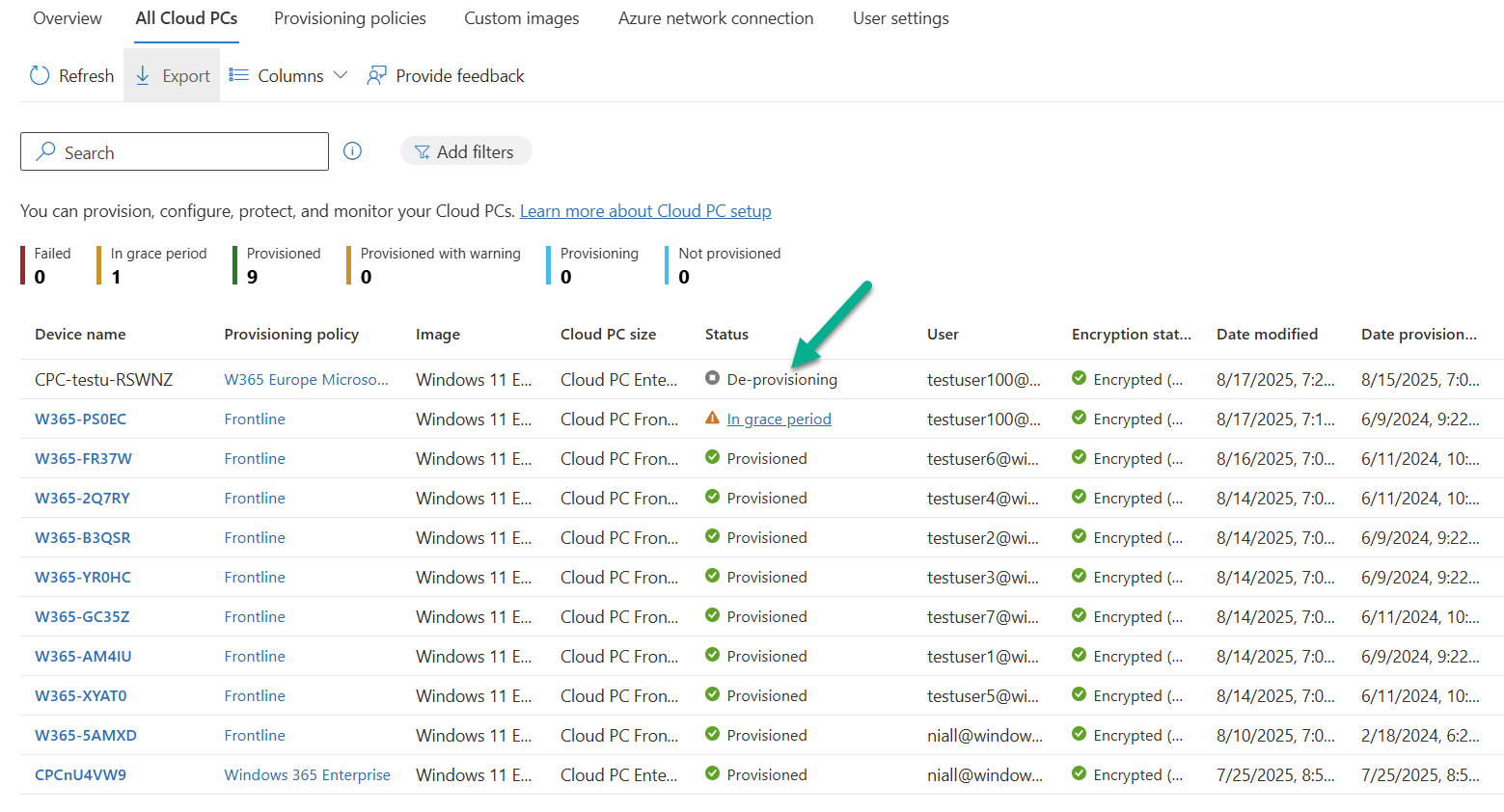
Some time later, the Cloud PC was no longer in the Intune console and was no longer available to the (now deleted) end user to use.
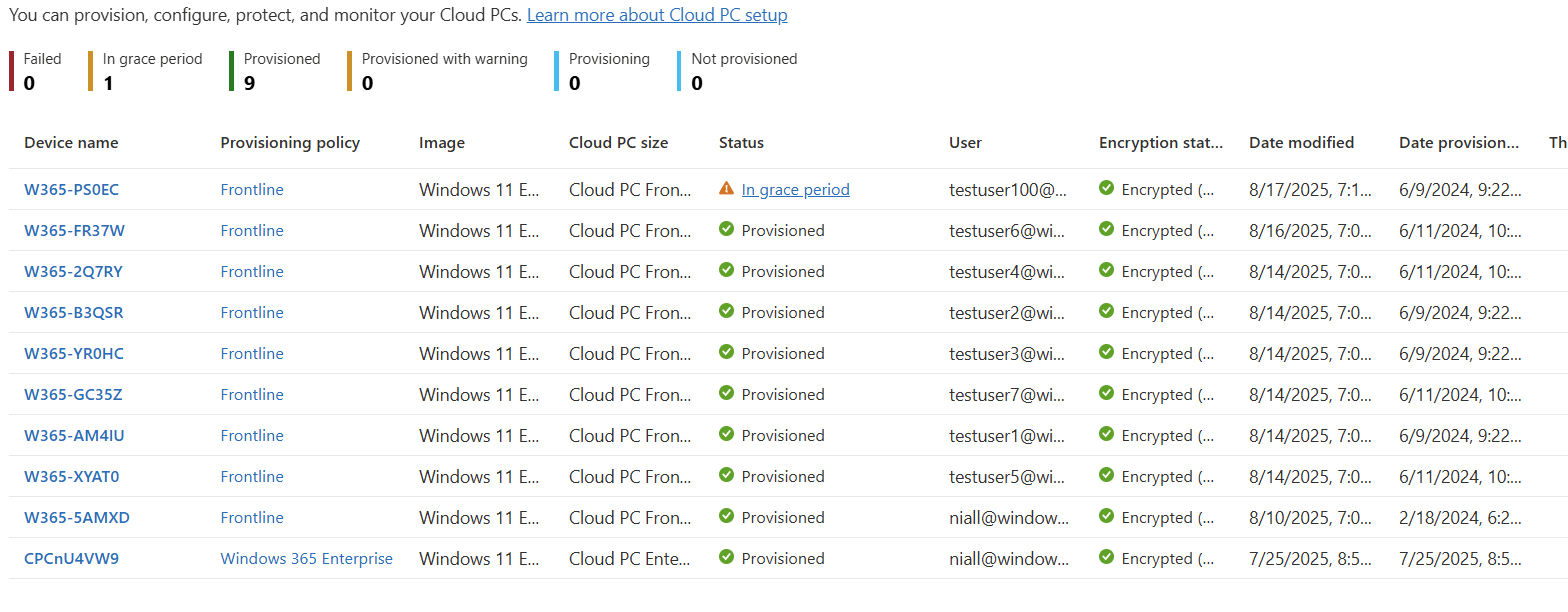
At this point, the de-provisioning process was completed.
Recovering de-provisioned Cloud PCs
In the real world, to see this new feature you’d renew an expired license and make sure that the user/group/policy and so on didn’t change during that time period. But we are simulating that, so to simulate it we’ll restore the user we deleted earlier, again, nothing else has changed other than that users Cloud PC’s went from in-grace period to de-provisioned.
So let’s restore the deleted user. In Azure (Entra Id) select users, click Deleted users and locate your deleted user. Select the user and click Restore users.
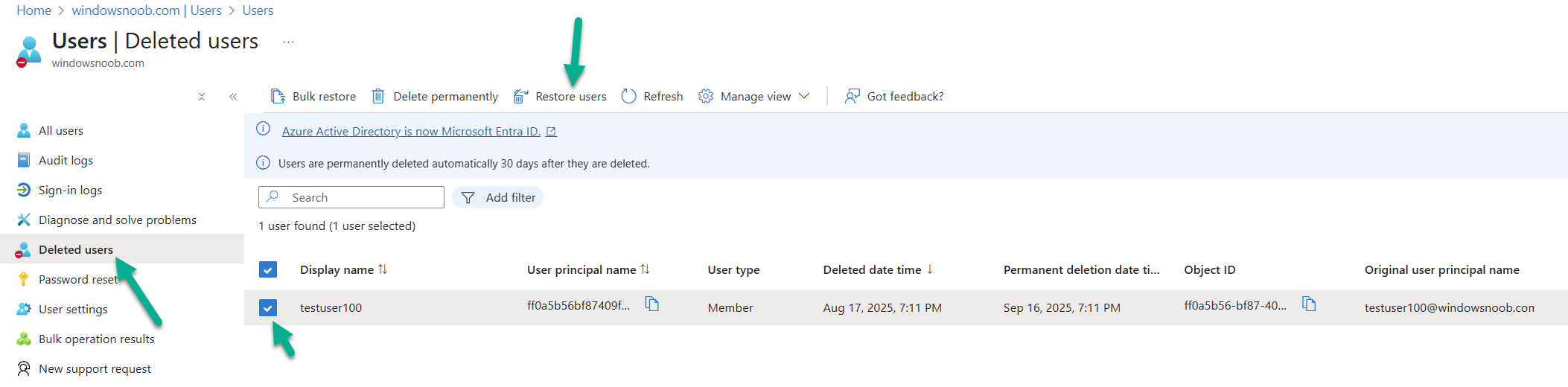
You’ll be notified of the restore.

And as the user was still in the same groups, they’ll pick up the Cloud PC assignments targeting them and a new Cloud PC matching the SKU in question will be provisioned.
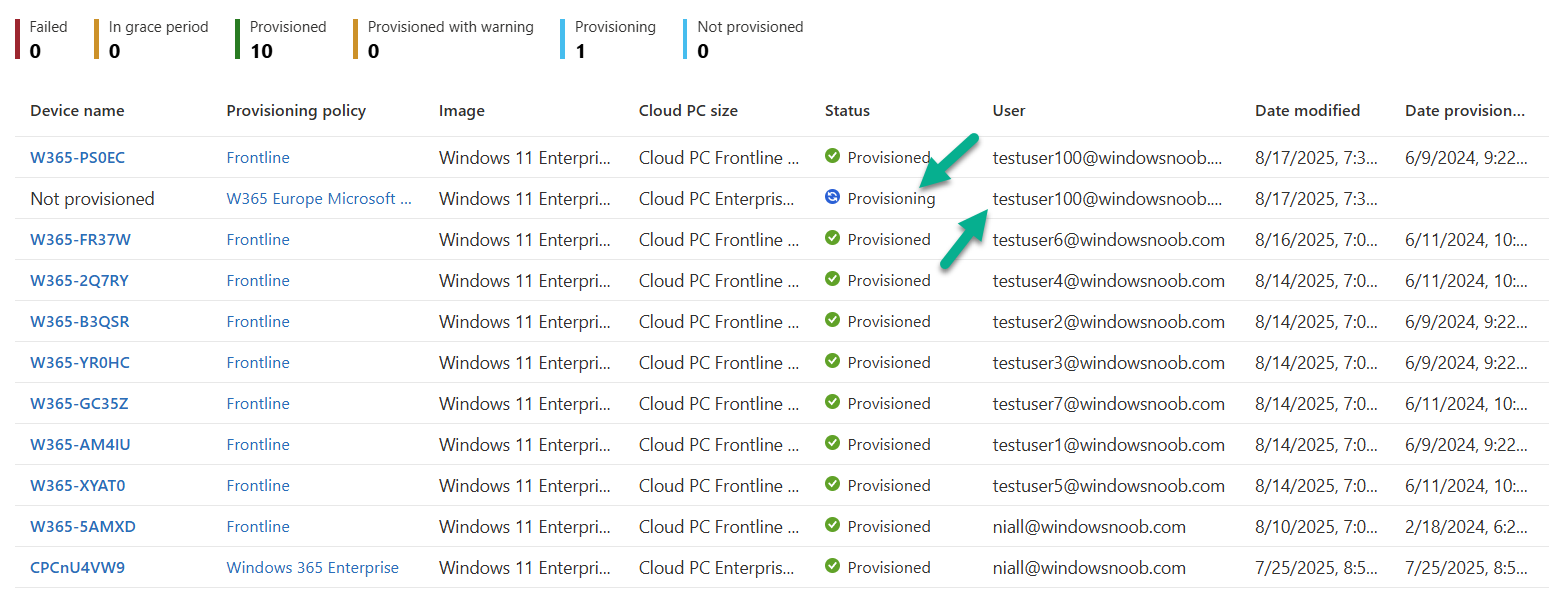
After the Cloud PC is provisioned, you’ll see it appear with a new computer name.

We need to do some final actions. Select the newly provisioned Cloud PC and click the Restore option.
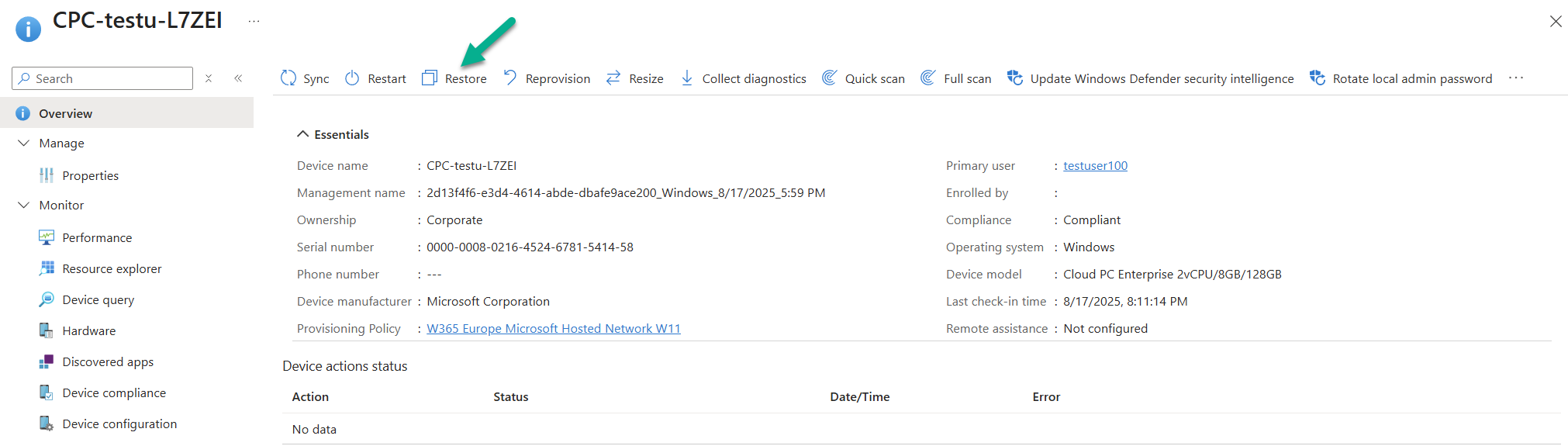
This will show a retention restore point.
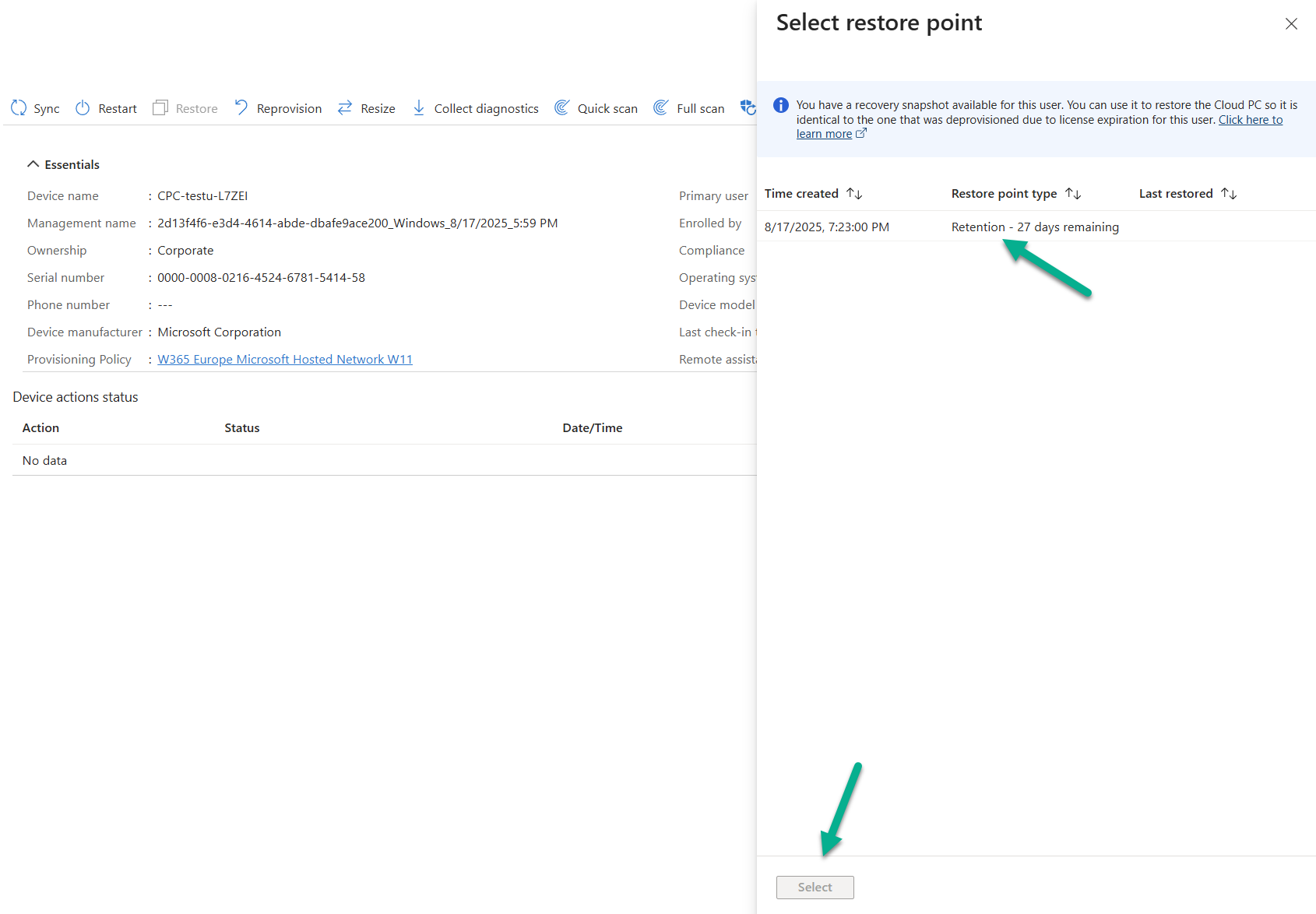
Select it and click the Select option to restore that de-provisioned Cloud PC.

You’ll get a popup warning you about the restore.
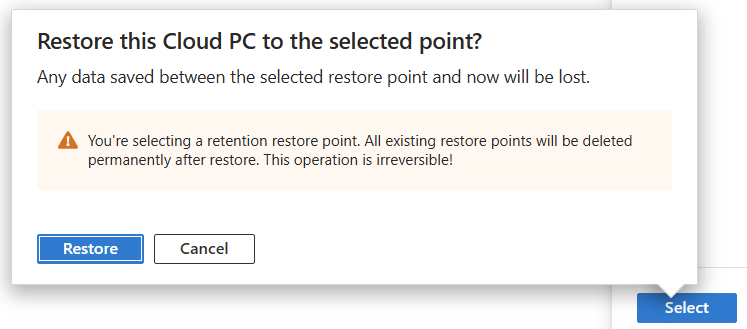
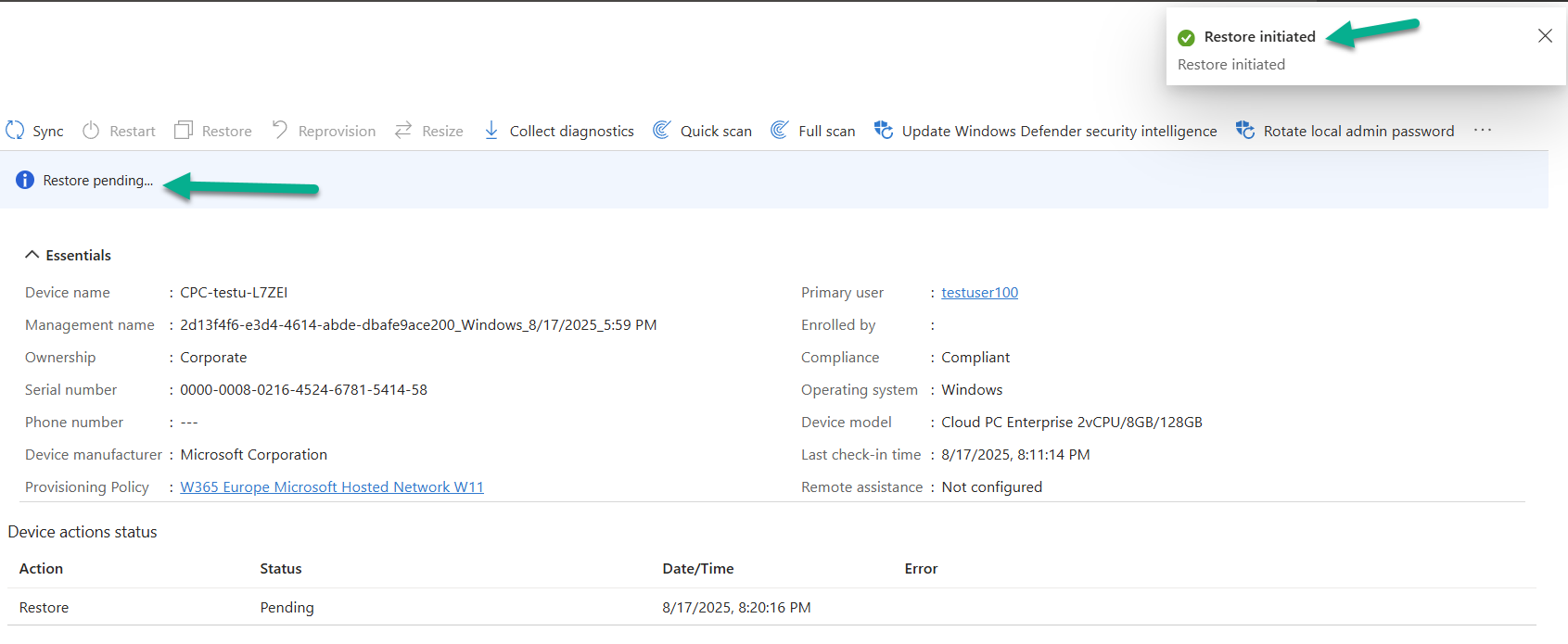
Click Restore and the restore will be initiated, you’ll see the status change to Restore pending.
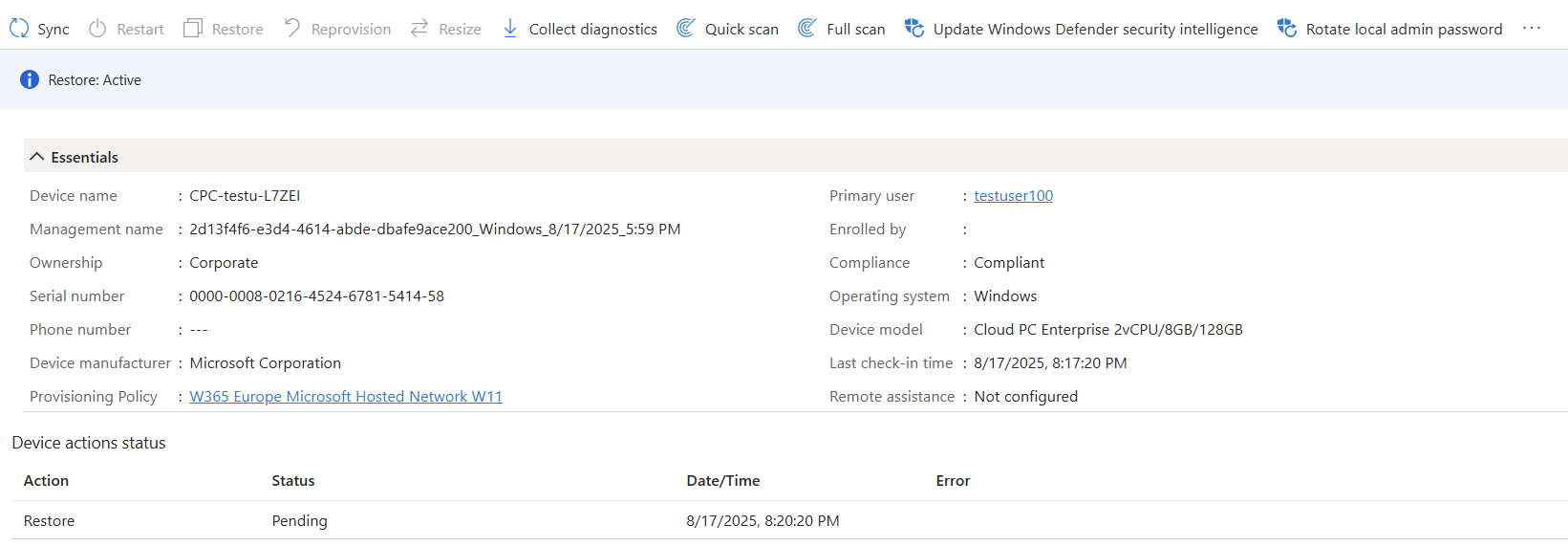
And during the restore the status will then change to Restore active.
and after a while refreshing that device will reveal a ‘Not found‘ statement (sorry no screenshot, we’ll add it shortly). However, if you navigate back to Windows 365 devices, you’ll see that the old name (old Cloud PC) is back !
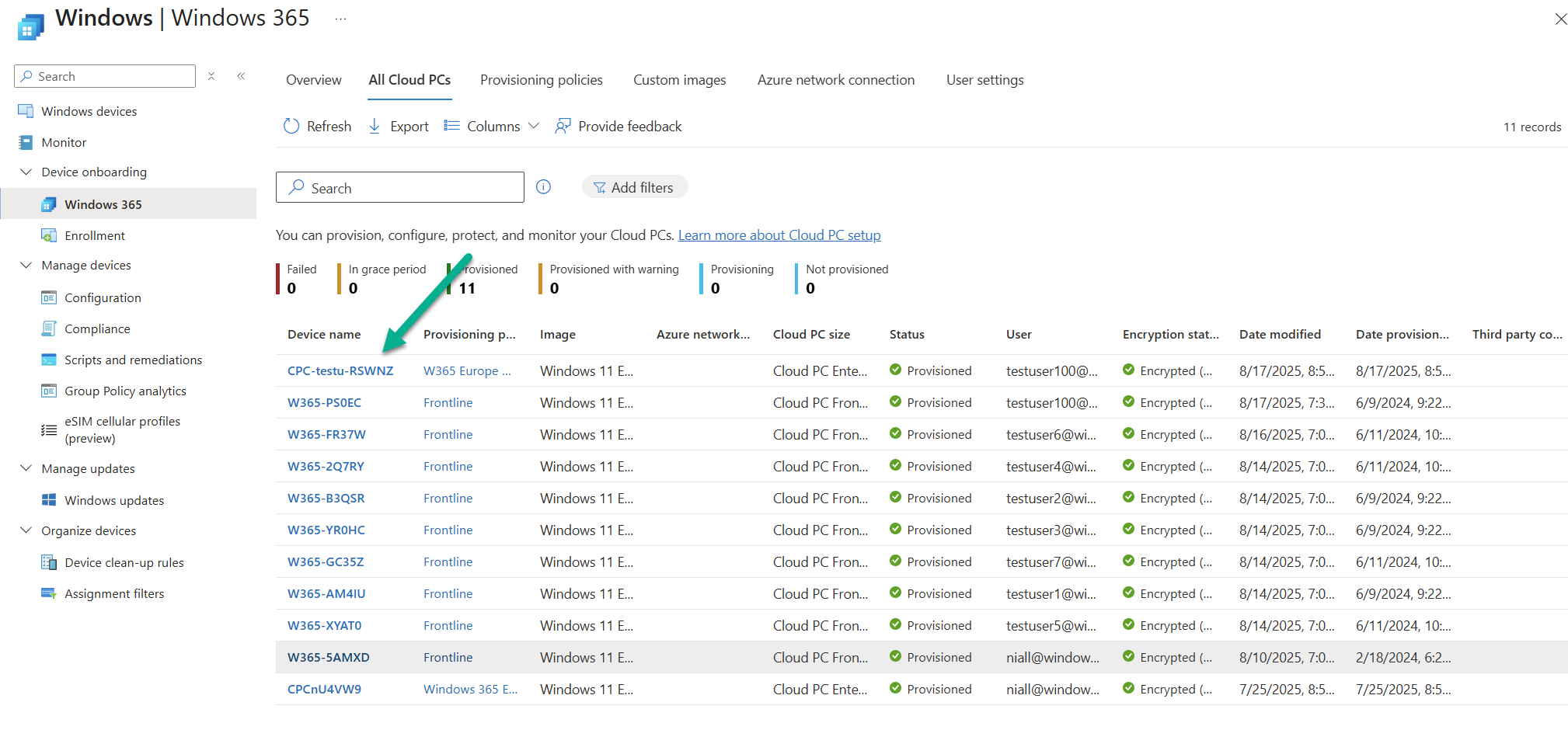
and logging on to that Cloud PC using the same user will indeed reveal that the content is as expected.
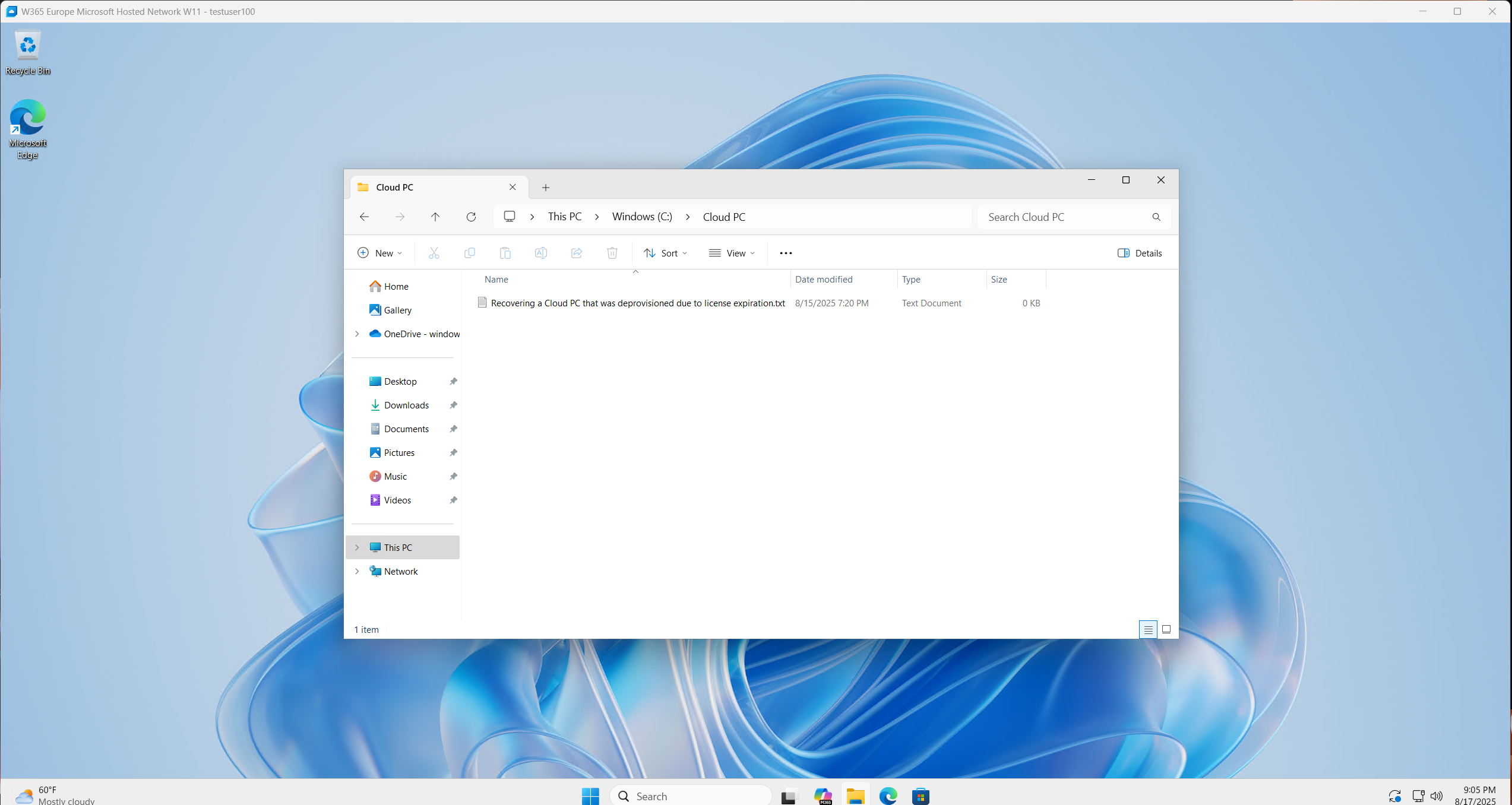
Job done!
