

Introduction
Look out for a new series of blogs from myself and my MVP buddy, Paul Winstanley as we explore the world of Azure Virtual Desktop (AVD).
In the meantime, we have collaborated on a kick the tyres exercise to experience the AVD solution via the Microsoft quickstart. This blog post details that experience with a simple step-by-step guide.
Microsoft provides the quickstart as a great way to test out an AVD environment with minimal fuss. It will create a small, low cost environment in approximately 20 minutes.
Prerequisites
To create the environment you will need to meet the following prerequisites:
- An active Azure subscription
- An Entra account with the following roles assigned:
- Contributor
- User access administrator
- Some test Entra accounts, for authentication into the AVD environment
- Available quota for your subscription for the
Standard_D4ds_v4virtual machine. If you have insufficient quote then you can increase – https://learn.microsoft.com/en-us/azure/quotas/per-vm-quota-requests - Access to the required FQDNs and endpoints in Azure – https://learn.microsoft.com/en-us/azure/virtual-desktop/required-fqdn-endpoint?tabs=azure
What gets deployed during the Quickstart
- A resource group called rg-avd-quickstart-<GUID>
- A virtual network and subnet. The IPv4 address space will be
192.168.0.0/24and will use Azure provided DNS servers - A network security group that is associated with the subnet of the virtual network and uses only the default rules. No inbound rules are required for Azure Virtual Desktop
- A host pool with single-sign-on (SSO) enabled
- An Entra joined session host running Windows 11 Enterprise multi-session with Microsoft 365 apps preinstalled with English (US). The virtual machine is a Standard_D4ds_v4 size virtual machine (4 vCPUs, 16 GiB memory) configured with a standard SSD disk
- An application group that publishes the desktop from the session host
- A workspace
For a complete list of the resource published by the quickstart, take a look the Microsoft documentation https://learn.microsoft.com/en-us/azure/virtual-desktop/quickstart?tabs=windows#deployed-resources.
Getting started
The first step is to register the Microsoft.DesktopVirtualization resource provider on your Azure subscription
In the Azure portal, go to your Subscriptions and select that one you will use for this exercise. Select Resource providers from the menu and look for Microsoft.DesktopVirtualization.
If this is listed as NotRegistered in your subscription, then click the three dots and select Register as shown below.

If it is already listed as Registered then there is nothing else you need to do. Before continuing, ensure that Microsoft.DesktopVirtualization is listed as registered.

Deploying the quickstart solution
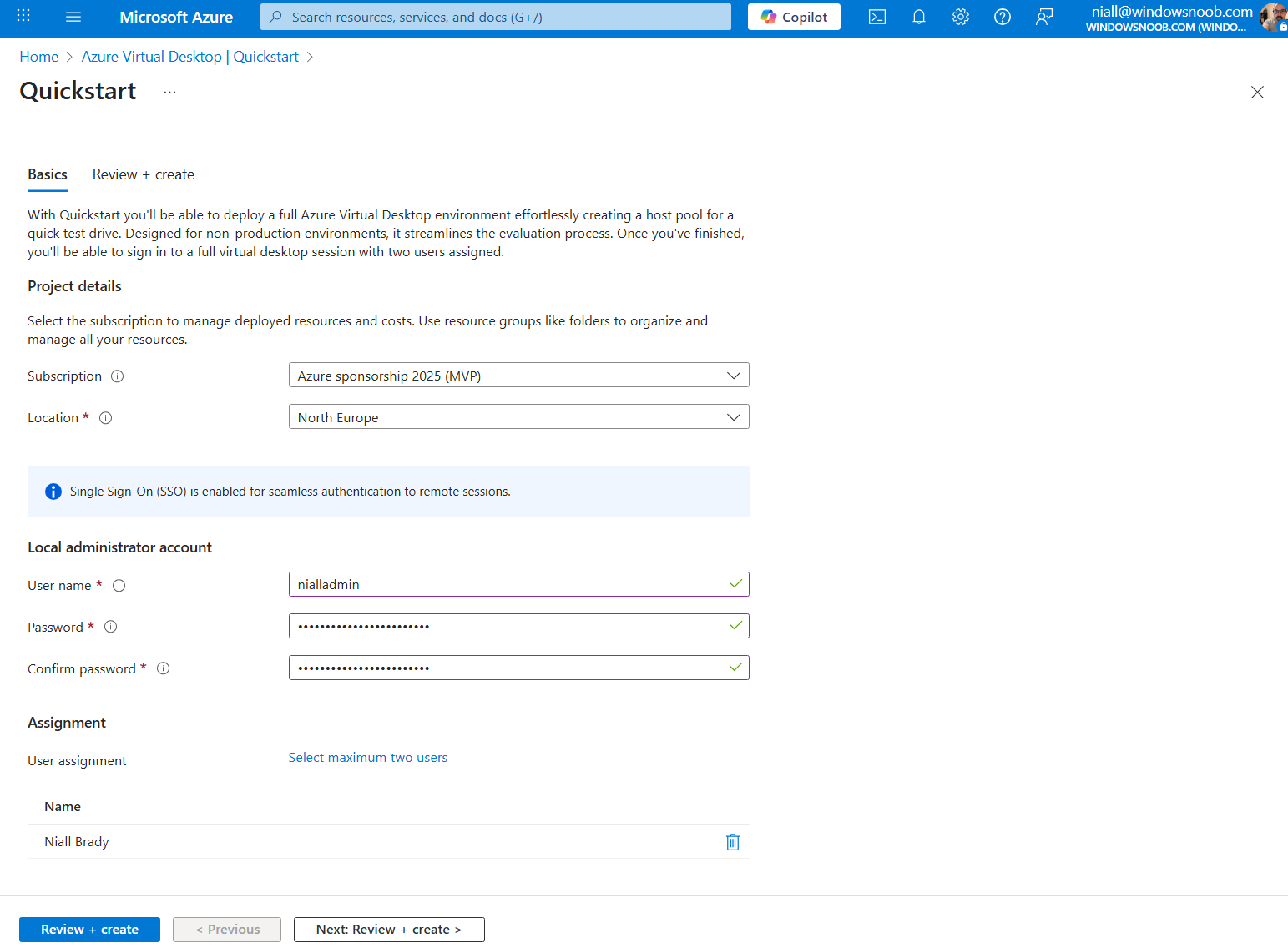
You can find the quickstart solution in the Azure portal by searching for Azure Virtual Desktop and then selecting Quickstart from the menu. Click the Create button to begin the process.

You will need to enter specific information on the Basics tab.
- Subscription: Ensure you choose the subscription where you have registered the resource provider previously.
- Location: Select the Azure region where you want the AVD resources deployed to.
- Local administrator account:
- Username: Enter the name for a local administrator
- Password: Enter and confirm your password for the local admin
- User assignment: Select a maximum of two users who will have access to the AVD devices (see screenshot below)
Once all the details have been entered click Review + create to continue through the quickstart wizard.
Ensure you receive a confirmation that Validation passed and click Create.

The deployment of the resources will be in progress.

If all goes well, Your deployment is complete will be returned.

Connecting to your AVD desktops
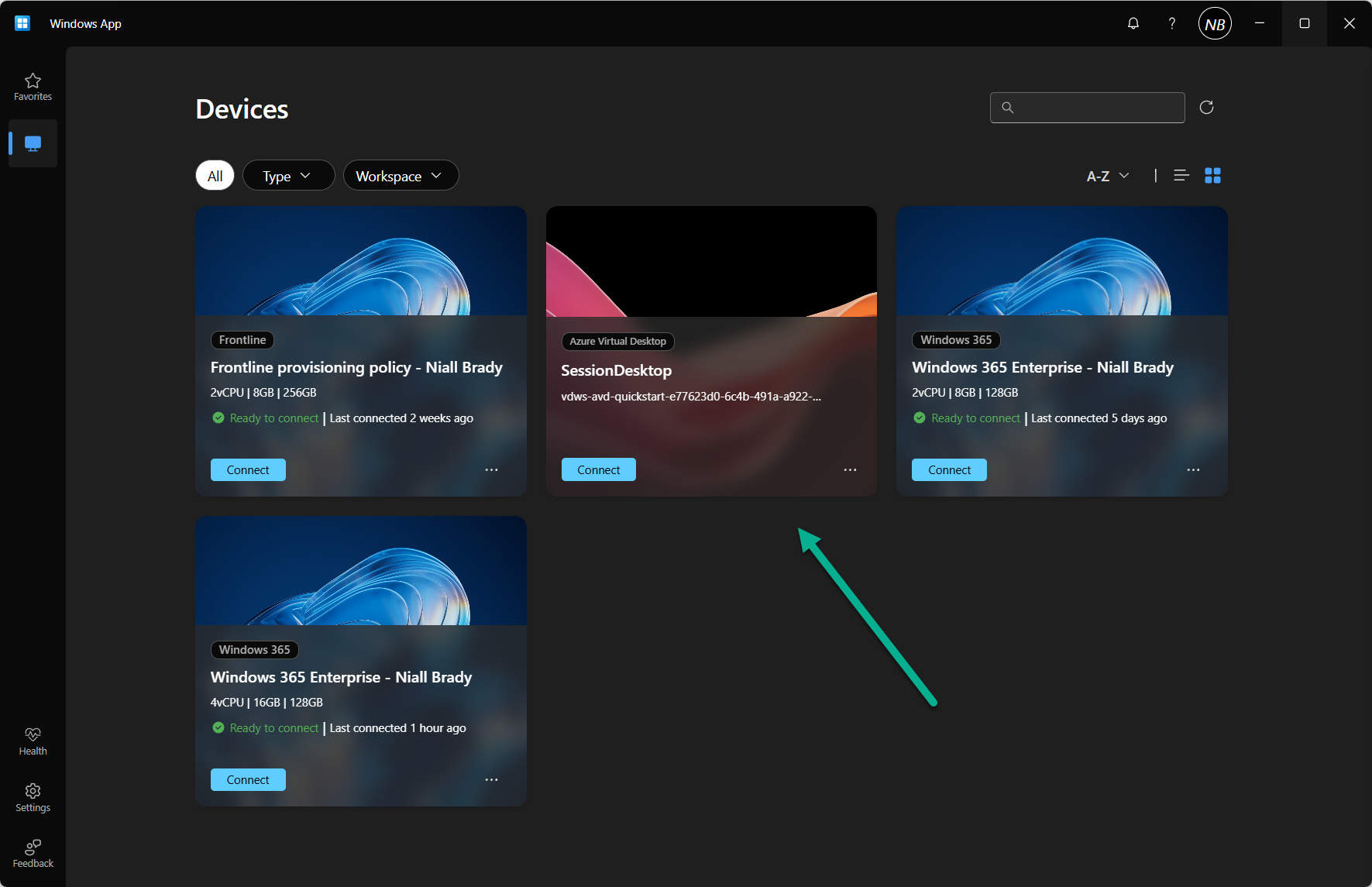
You can connect to your AVD desktops via the Windows app, which is available from the Microsoft Store.
When installed, and one of your allocated users is authenticated to the app, you should see a SessionDesktop item (in addition to any Cloud PC’s or other AVD’s available to that user). This is your AVD desktop.
Click Connect to access.
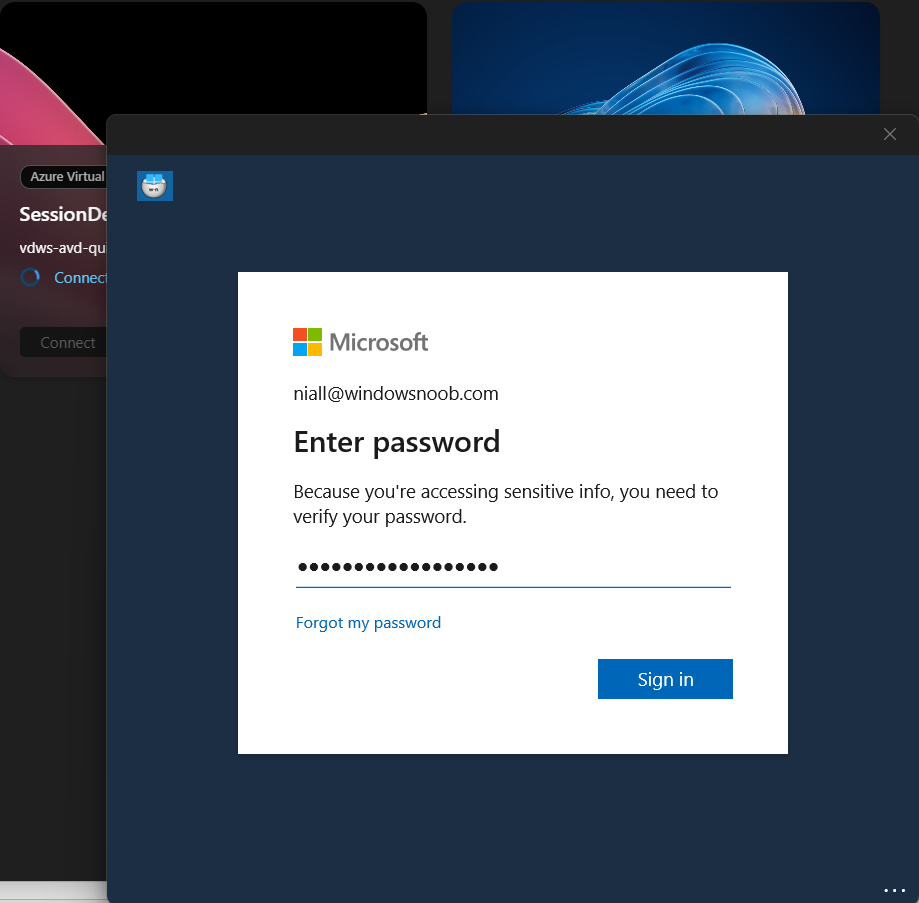
Once done, you will be prompted to enter your password, or MFA details and then asked to Allow remote desktop connection. This message can be suppressed using a list of trusted devices (see https://learn.microsoft.com/en-us/azure/virtual-desktop/configure-single-sign-on for more information).
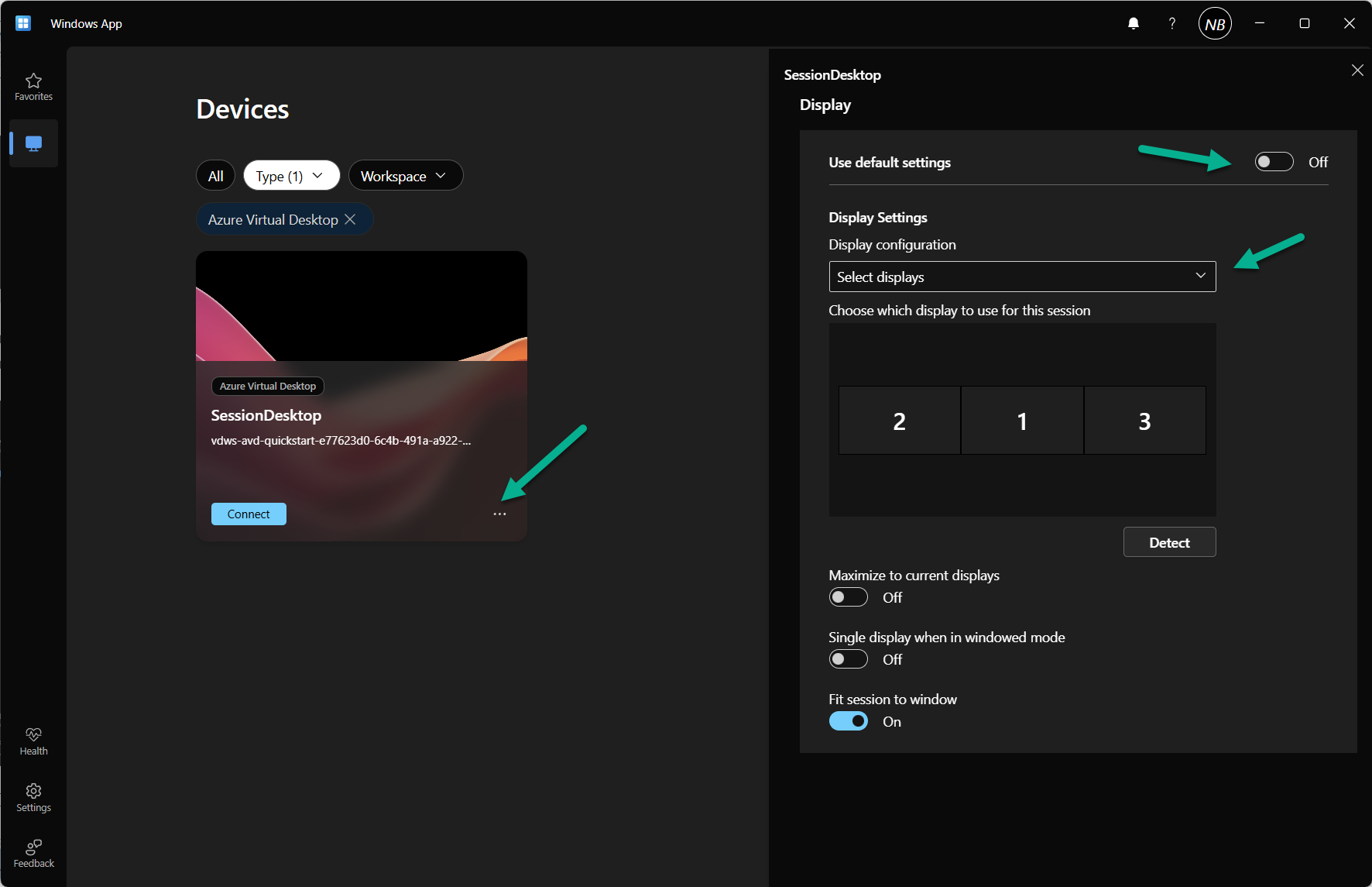
Just to note, you can also alter the display settings for your AVD session by clicking the ellipsis (three dots) and adjusting.
Eventually, you will hit the Windows 11 desktop.

Since this is multi session, your other allocated user can log in and use the AVD desktop at the same time. Note, the screenshot below, the same hostname is in use.

Removing the quickstart services
Once you have used the quickstart, you may wish to clean up the resources, ready for your deeper dive into AVD.
To do this, locate your AVD virtual machine under Virtual machines in the Azure portal and click on the device.
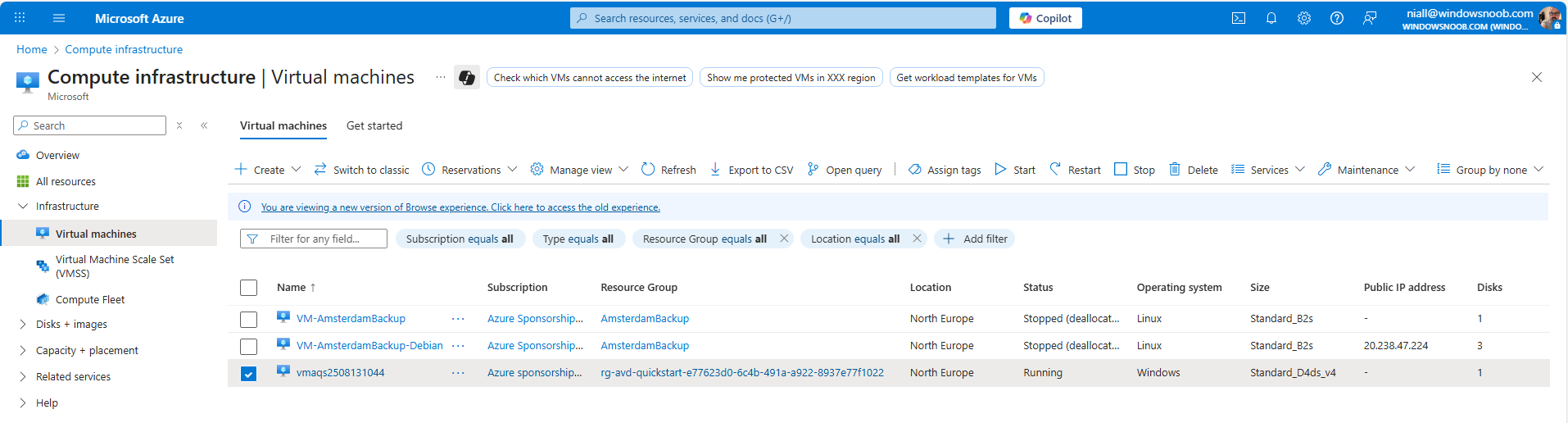
Click Stop to deallocate the device.
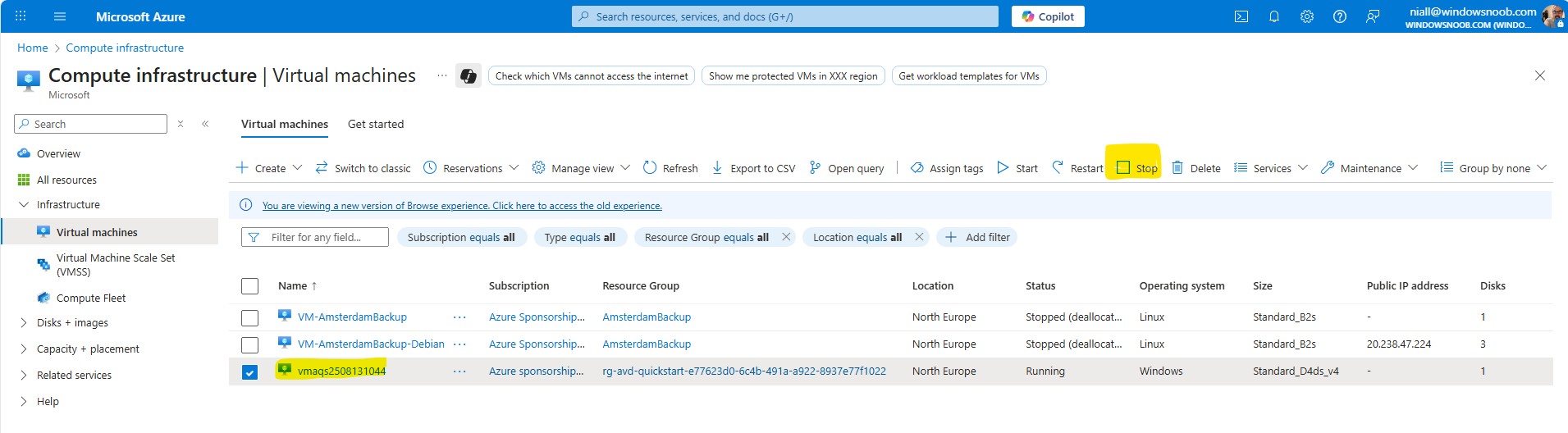
You will be prompted to confirm the deallocation. Make sure you have ony selected the AVD virtual machine that you want to stop. Click Yes.
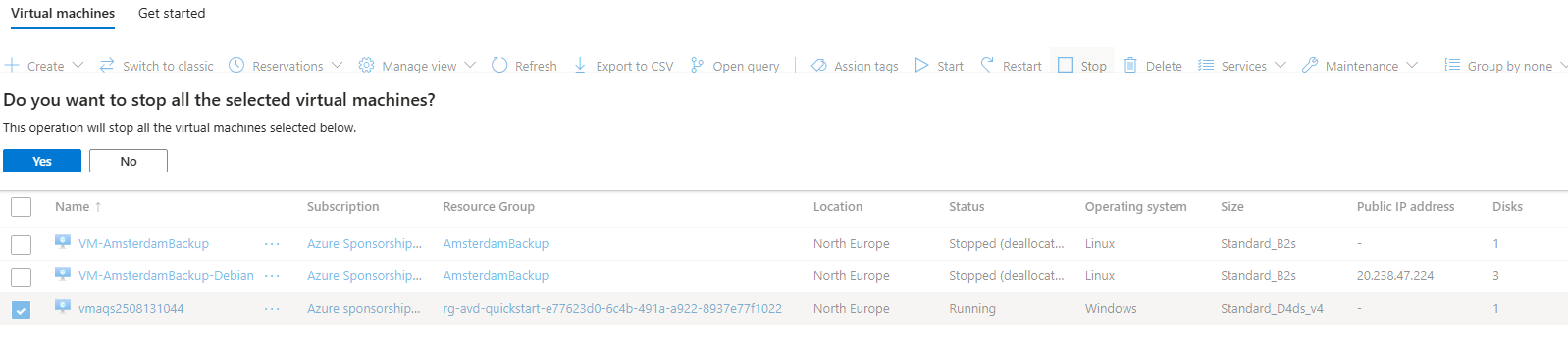
Wait until the device reports back as Stopped (deallocated) under its Status.

Now we need to remove the resources which were created, as they encur costs when running. You can do this 2 ways, in Azure, search for Resource groups and find the one created by AVD. As mentioned, this will have a naming convention of rg-avd-quickstart-<GUID>, or simply click the AVD virtual machine and then select the resource group it’s in as shown here.
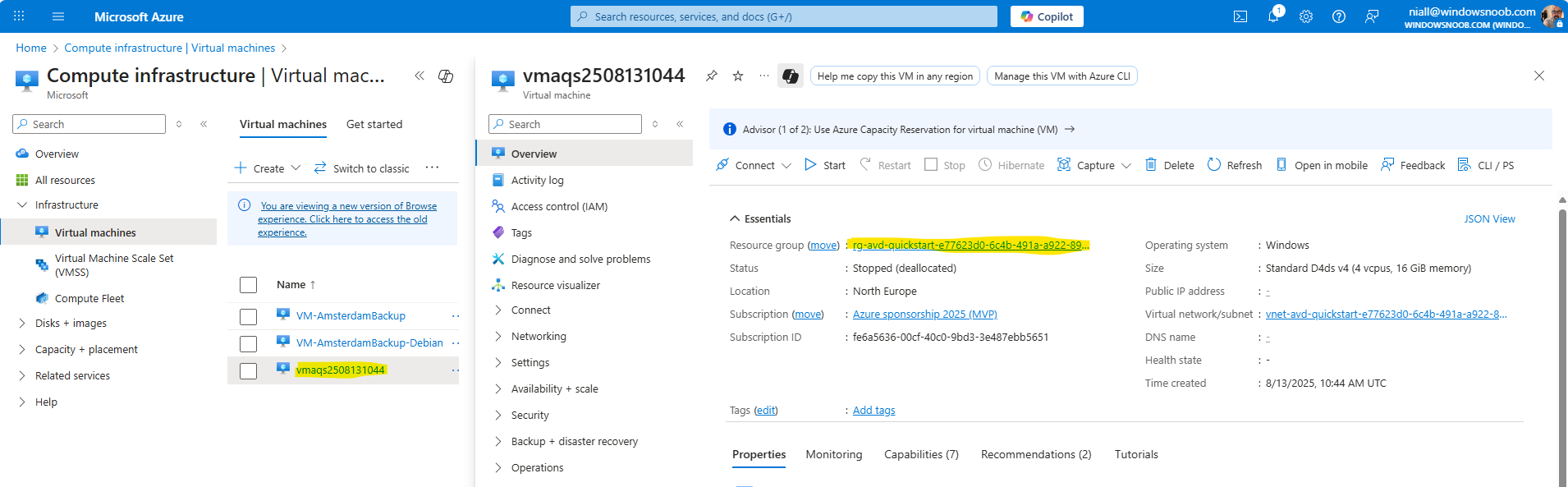
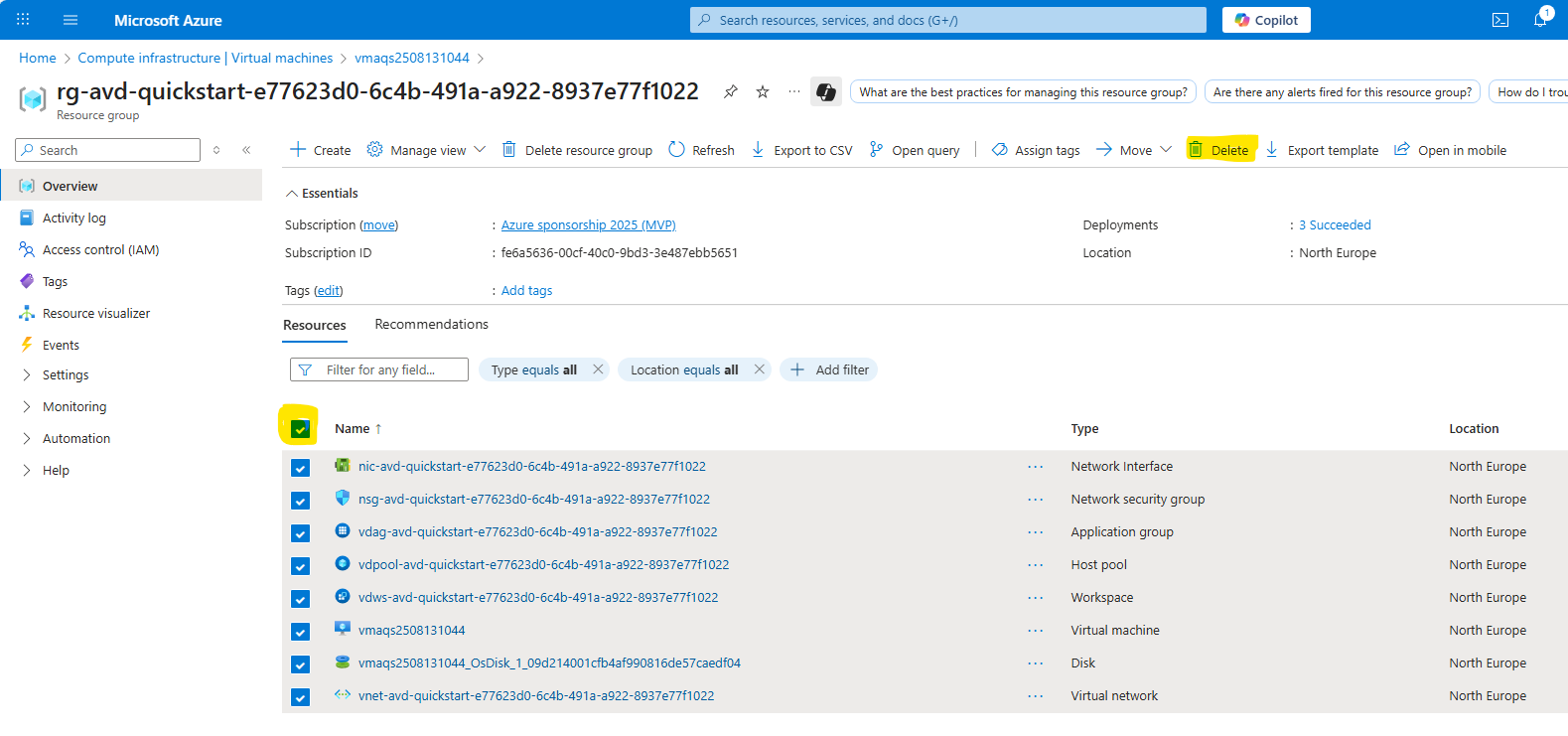
Click into the resource group, select all the resources under Overview and then click Delete.
You will need to confirm their removal by entering delete in the field below and also you can select Apply force delete for selected Virtual machines and Virtual machine scales sets, if you so wish. Once done, click the red Delete button.
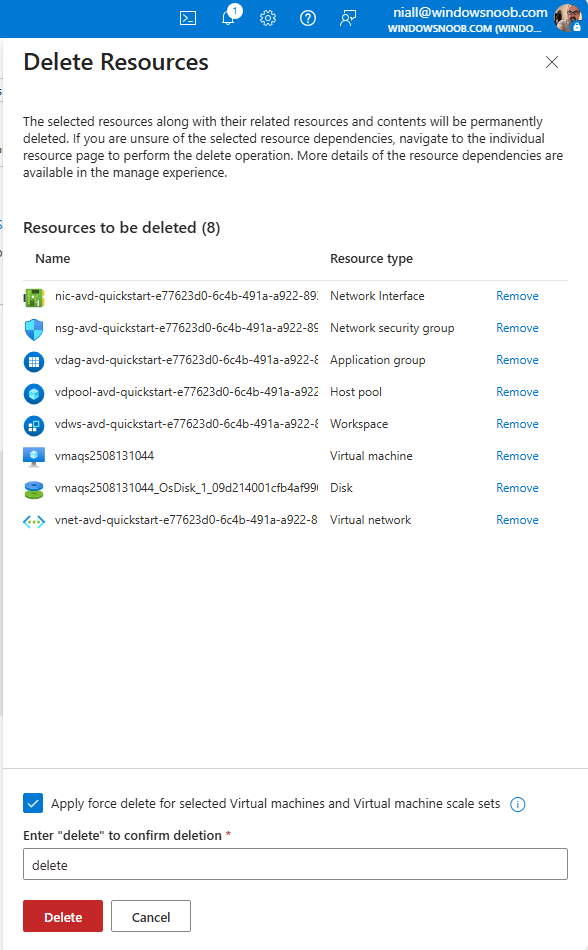
You will then need to confirm the deletion of the resources. Click Delete one more time.

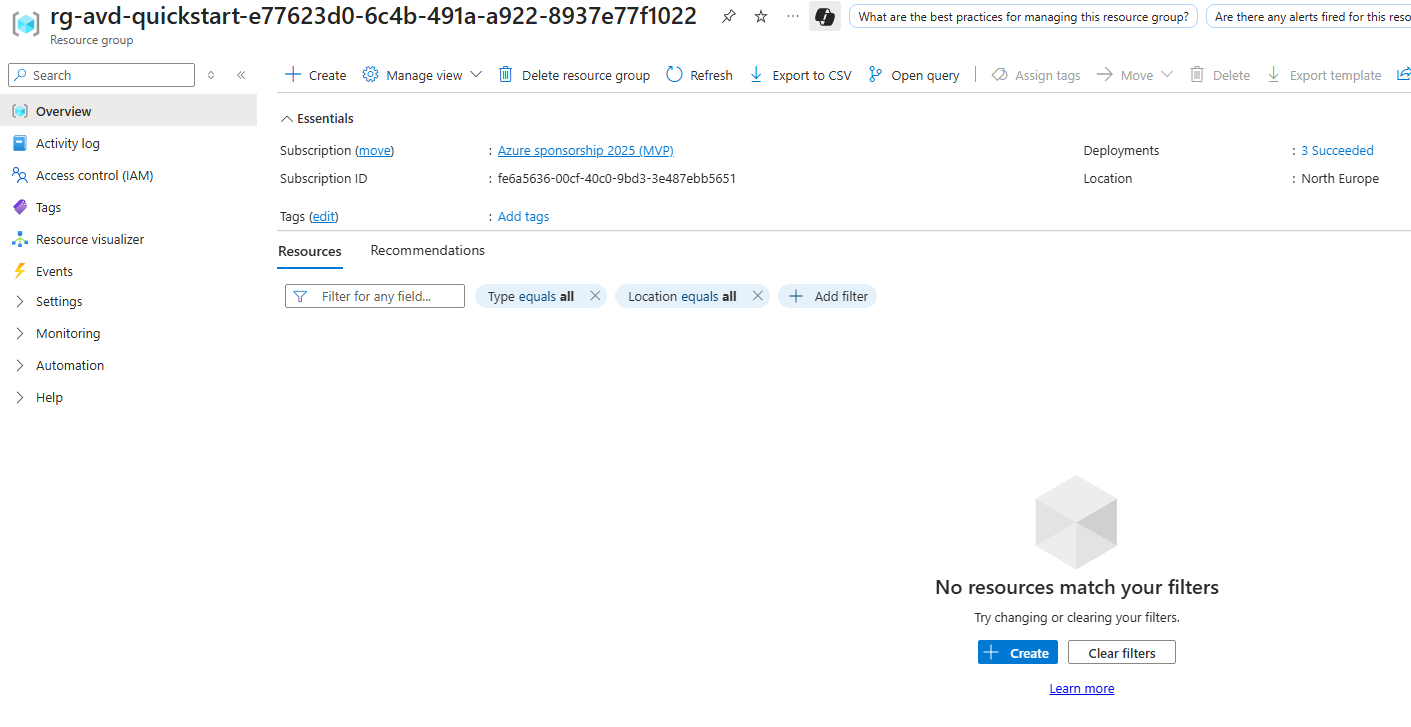
The resources will no longer be listed when they are removed.
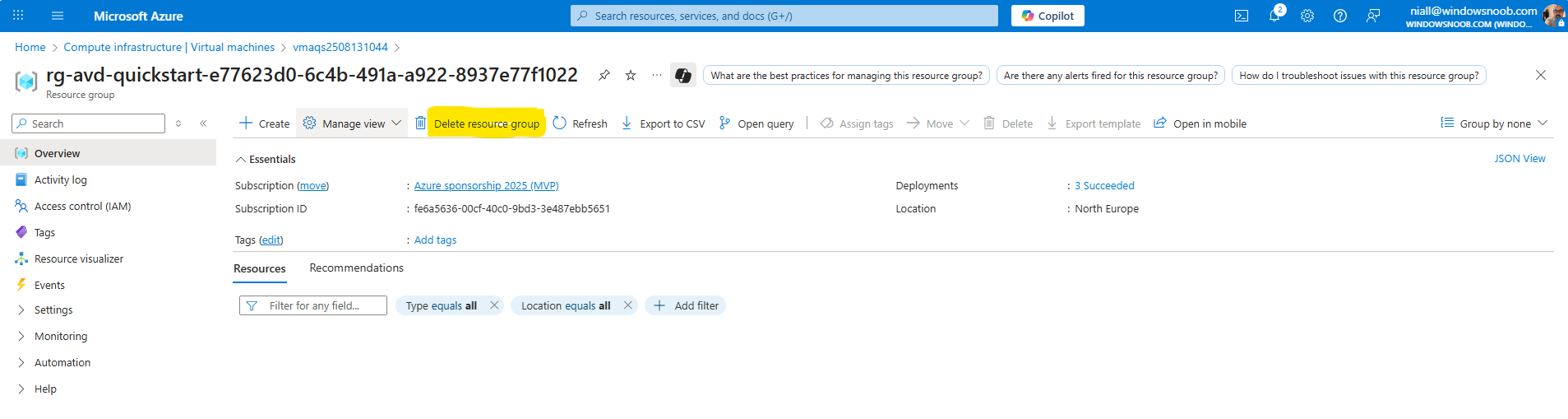
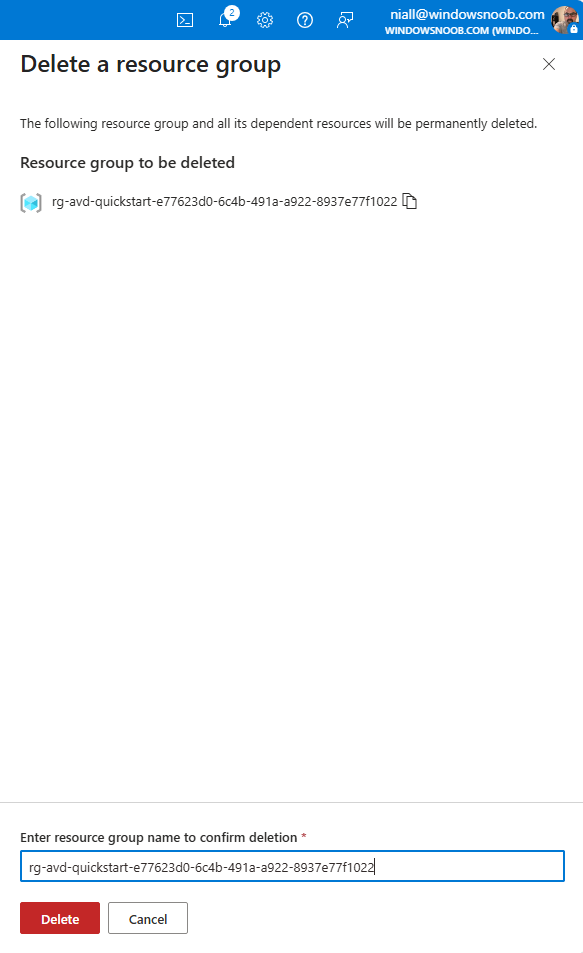
Next, click Delete resource group to remove the quickstart resource group.
Enter the name of the resource group to confirm its deletion and click Delete.
Once again, confirm by clicking Delete.

I hope this guide gives you a good oversight into how quickly you can test out the Azure Virtual Desktop using Microsoft’s quickstart option. You can get a VM up and running in no time and experiment with it.
As mentioned, we will be taking a deeper dive look at AVD very soon, so watch this space and keep an eye on the SCCMentor and windowsnoob websites.
