

Introduction
I started my day as always and launched the Windows app, I clicked my Cloud PC, entered my credentials and after a short delay I got an error shown below.
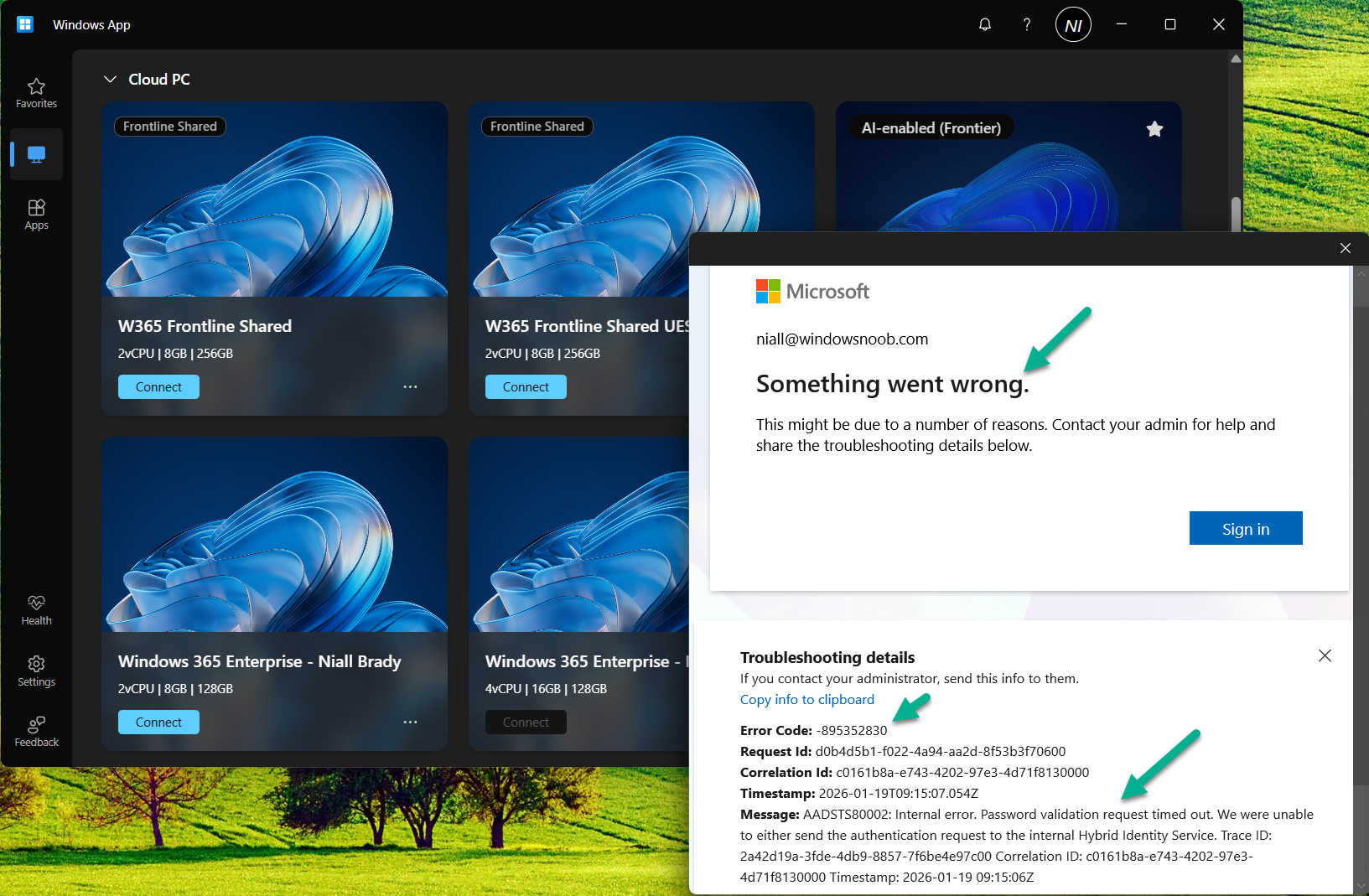
The error shown above was “something went wrong” with a very not useful error code, -895352830. I tried this on multiple tenants with the same error code being generated.
I asked Copilot what this meant and got the following details
This code corresponds to an AADSTS65002 token/permission issue during authentication.
Microsoft documentation shows the same error pattern:
Error: -895352830 (0xCAA20002) — occurs when a Microsoft first‑party app is missing required preauthorized API consent, causing token broker authentication to fail.
[learn.microsoft.com]
This means the Windows App cannot obtain a valid authentication token due to a Microsoft Entra (Azure AD) app permission issue, often triggered by:
- Broken SSO token broker
- A corrupted local identity cache
- A bad Windows Update interfering with Windows App authentication
The last point above (a bad Windows Update) is indeed the cause. More details below:
January 2026 security patches (notably KB5074109) are currently breaking logins in the Windows App and Remote Desktop authentication:
- Microsoft confirms widespread credential failures after the January 2026 update, impacting Windows App sign-ins for Azure Virtual Desktop & Windows 365.
[theregister.com] - Users report the app immediately fails with authentication errors after pressing Connect.
[theregister.com] - Removing KB5074109 restores normal Windows App login functionality (confirmed by multiple users on Jan 15–16, 2026).
[learn.microsoft.com]
According to theregister.com
The upshot is that connecting to Windows 365 or Azure Virtual Desktop from the Windows App could be borked due to credential problems. Microsoft posted: “Investigation and debugging are ongoing, with coordination between Azure Virtual Desktop and Windows Update teams.”
The problem is widespread and appears to affect every supported version of Windows, from Windows 10 Enterprise LTSC 2016, right up to Windows 11 25H2. Windows Servers 2019 to 2025 are also affected.
Great, so now what ?
Suggested workarounds are that you can connect to your Cloud PC using the soon to be unsupported Remote Desktop Client Agent available from here.
I tried it, but it too failed to connect.
Next, I tried via a web-browser, but that also didn’t work. The Cloud PC I’m trying to connect to is protected using the new CKIO feature and the web browser version does not support that.
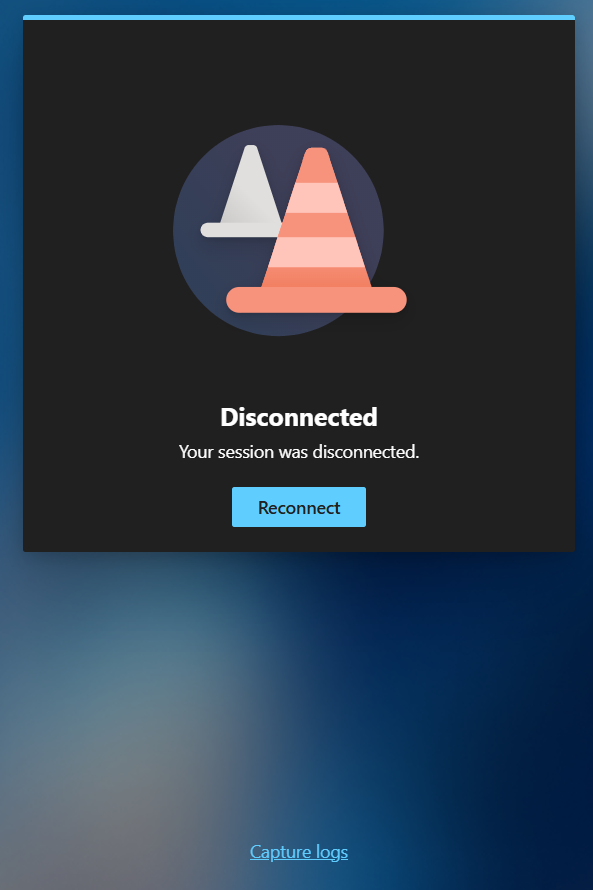
Verifying the problem
A quick look in Intune, revealed that indeed the problematic CU was indeed applied to my Cloud PC’s and the PC I was making the connection from (Windows 11 25H2 ARMx64).
Here’s a sample. As you can see below
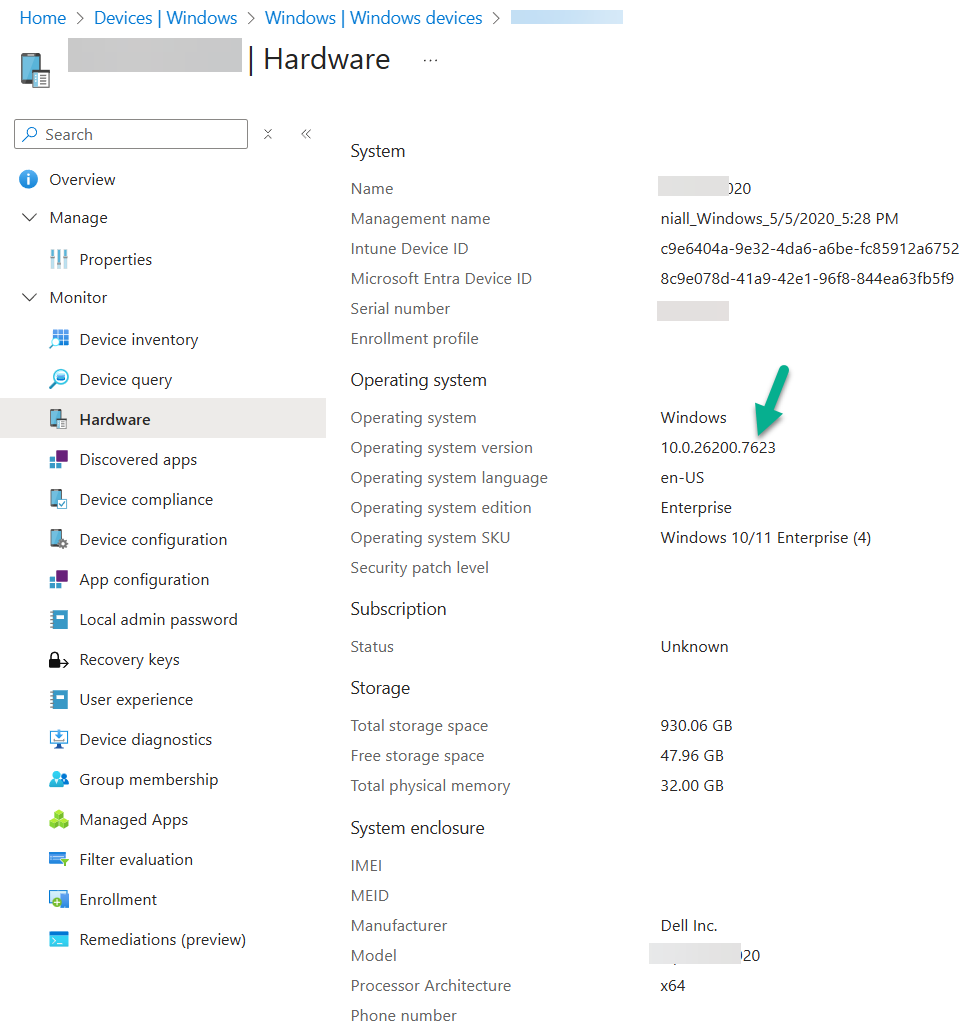
Below you can see the CU details…
- 10.0.26200.7623
- 10.0.26100.7623
and within that you can see the known issues including the suggested workaround, which is to install KB5077744.
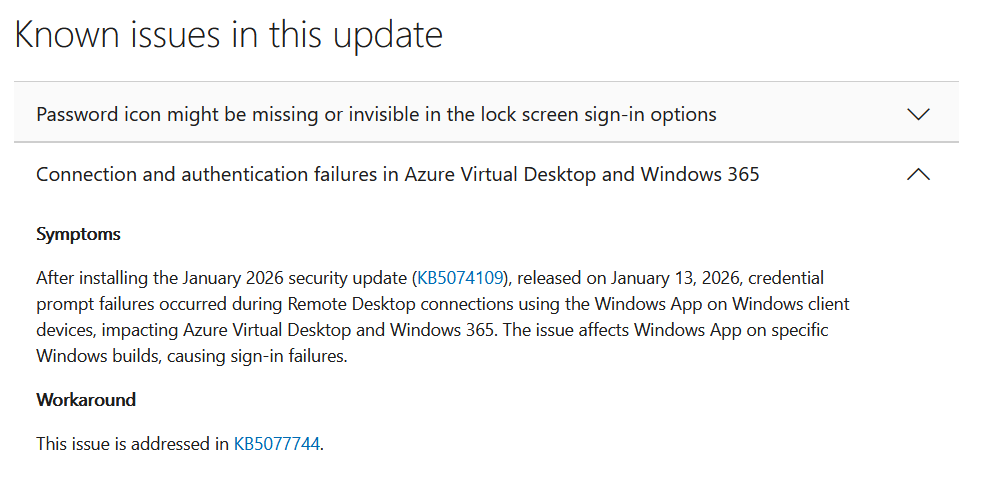
As it’s so new this update is not even available in Windows Autopatch so you cannot currently use expedite updates policy to deploy this.
- KB5077744 is an Out‑of‑Band (OOB) update for Windows 11 25H2/24H2.
- It is not delivered through Windows Update automatically and must be manually downloaded and installed from the Microsoft Update Catalog.
- You must use the Microsoft Update Catalog to obtain the standalone package (MSU). [support.mi…rosoft.com]
The fix
As KB5077744 is only currently available (at the time of writing, 2026/01/19) via Microsoft’s Catalog, you must deploy it (the msu) from Intune by wrapping it as a Win32 app.
Because Intune does not directly deploy .MSU updates as updates, the supported method is to wrap the MSU as a Win32 app and deploy it to your affected clients.
Go to Microsoft Update Catalog and search for kb5077744.
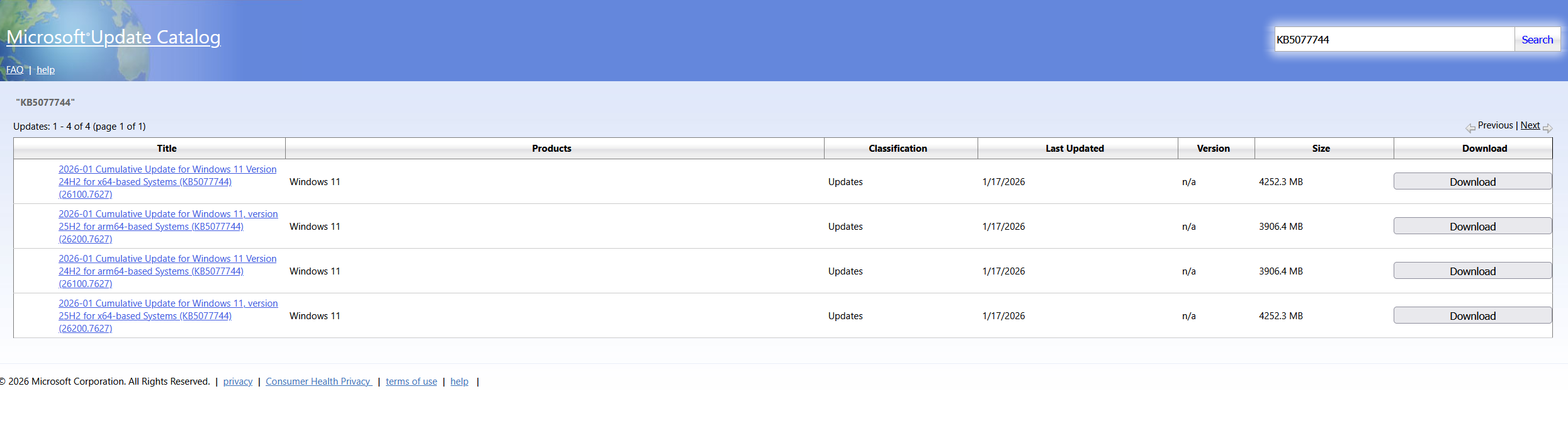
Download the update that is applicable to your Windows OS version. Be aware that the file size is big, my download was approx 3.6GB.
Place the downloaded msu file and this Powershell script in a folder called KB5077744.
here’s the contents of the Powershell script, modify it so that it has the exact file name of the msu file you downloaded otherwise it won’t install. Save the file as Install_KB5077744.ps1.
wusa.exe windows11.0-kb5077744-x64_fb63f62e4846b81b064c3515d7aff46c9d6d50c8.msu /quiet /forcerestart
exit $LASTEXITCODE
Note: If you want to control reboot notifications and other options, package this instead using Powershell Application Deployment Toolkit and customize those options as necessary.
Using Intunewinapputil.exe wrap the package as a Win32 app.
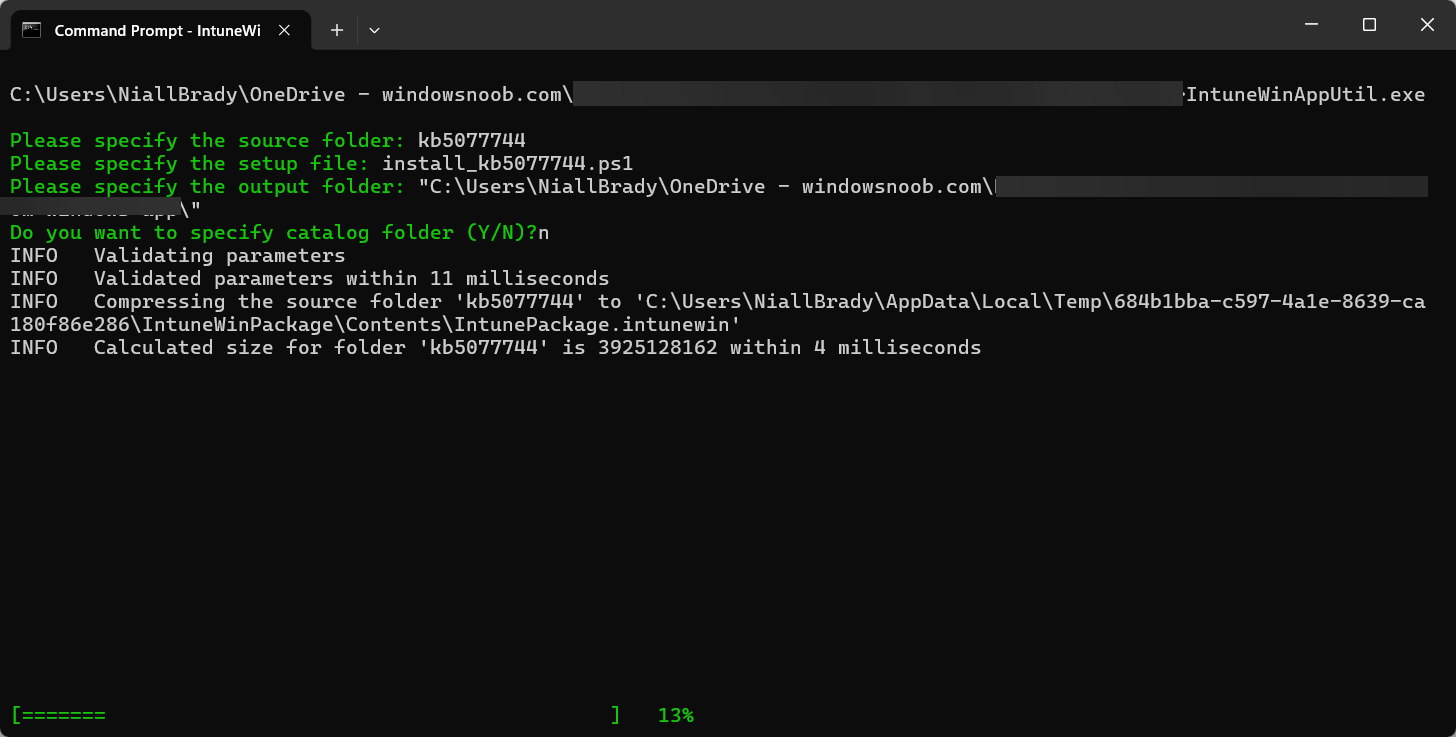
Then add the Win32 app

use this command line
powershell.exe -ExecutionPolicy Bypass -File Install_KB5077744.ps1
and the following detection script.
$sysinfo = systeminfo.exe
$result = $sysinfo -match "KB5077744"


if ($result) {
Write-Output "Found KB5077744"
exit 0

} else {
Write-Output "KB5077744 not found"
exit 1

}
Finally, after deploying the update to your affected clients, and waiting for it to install and restart, you’ll be able to connect again.
Phew.
What a relief.
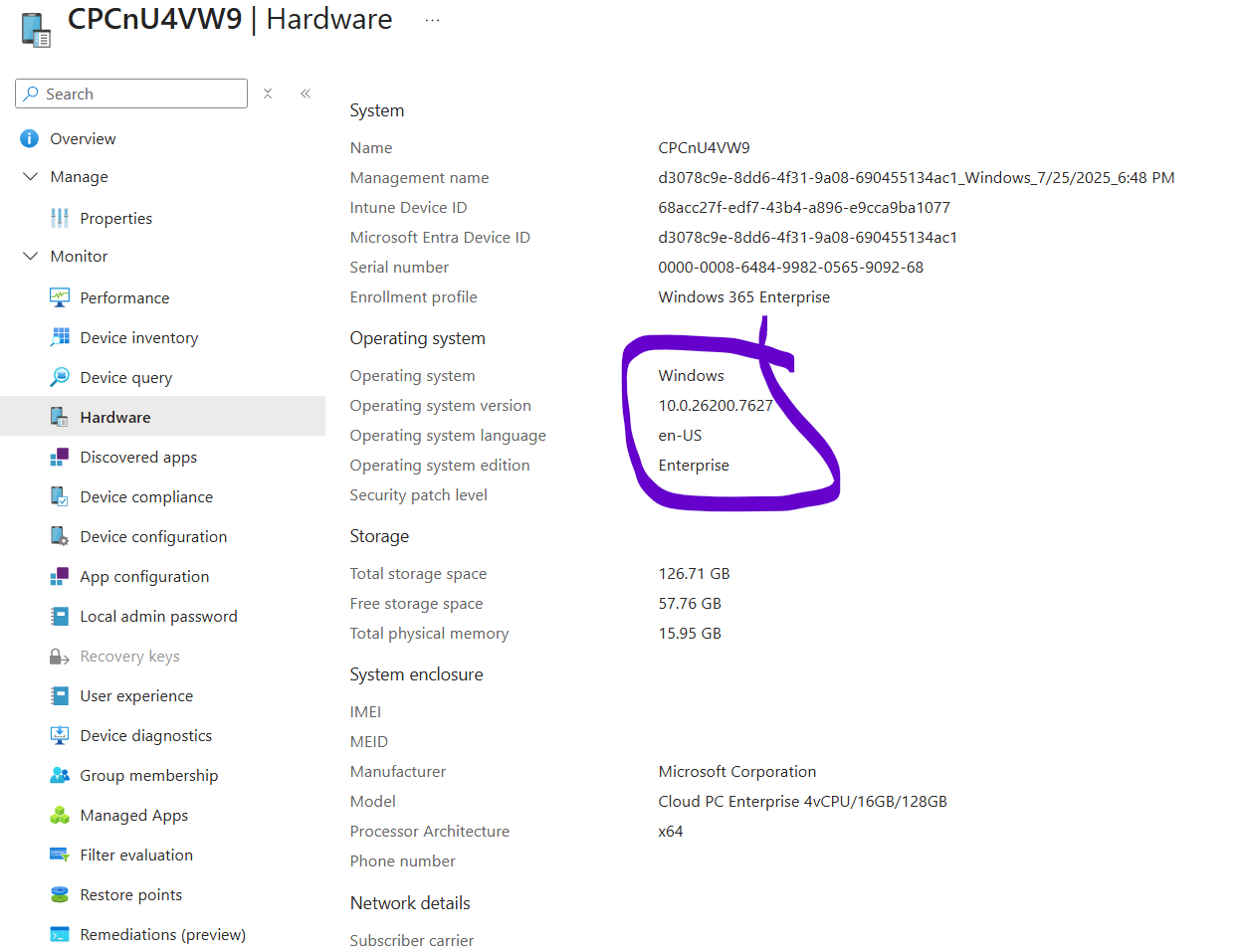
The new Windows build number is highlighted below.
10.0.26200.7627 from a Windows 11 25H2 Cloud PC.
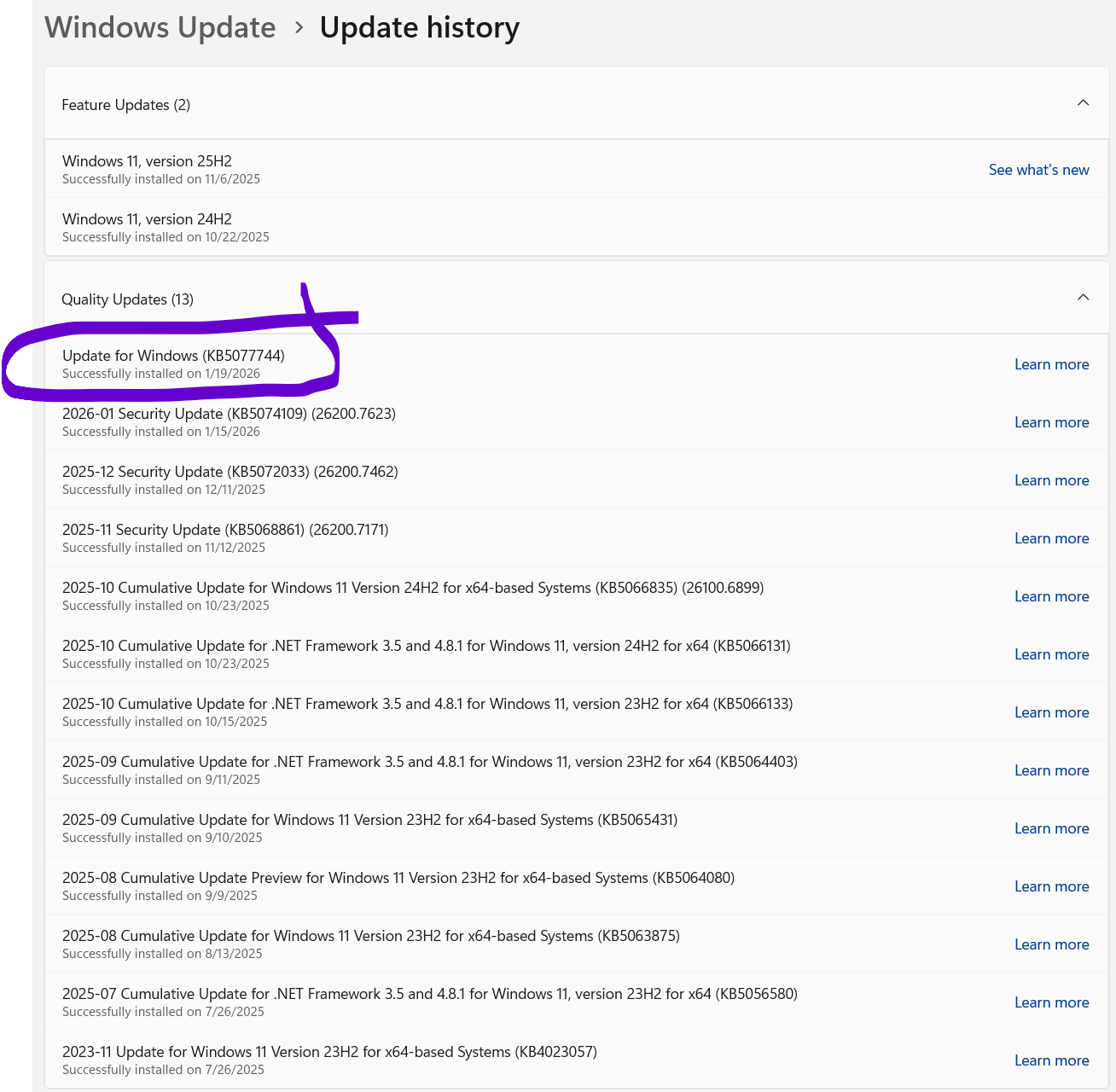
and here you can see it successfully installed on the client
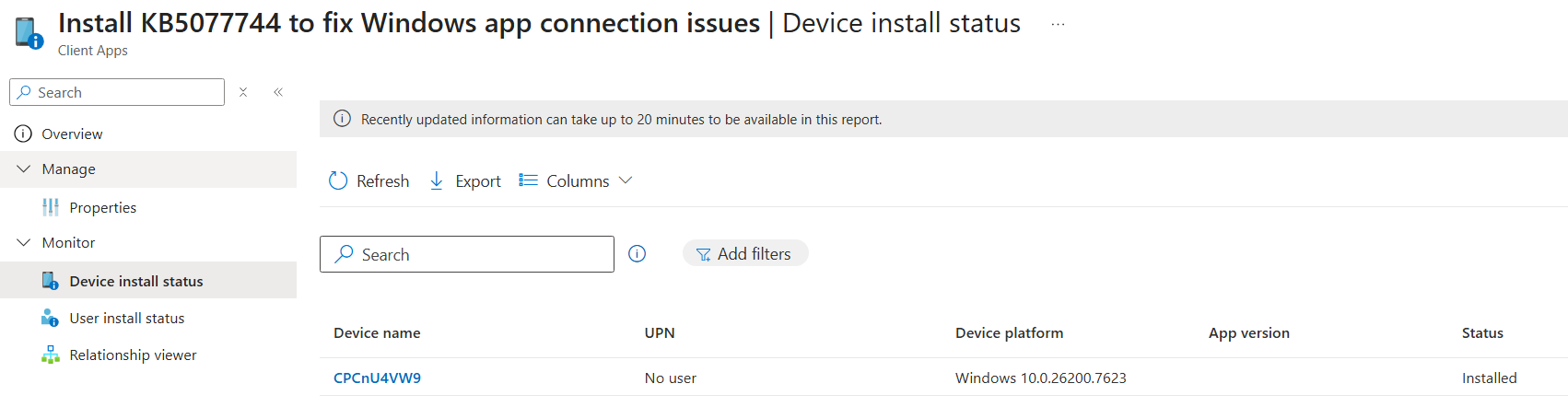
and of course, via Intune, however Intune still has not yet updated the build number of the CPC yet in the Win32 app install status.
Update
Make sure you patch the host PC making the connection to the Cloud PC and the Cloud PC if it has the .7623 patch level (January update). Also make sure to restart the patched computer at least twice.
Related reading
- Reddit: https://www.reddit.com/r/AzureVirtualDesktop/comments/1qc3g1x/comment/nzmy4fv/
- theregister: https://www.theregister.com/2026/01/15/windows_app_credential_failures/
- KB5077744 – https://support.microsoft.com/en-us/topic/january-17-2026-kb5077744-os-builds-26200-7627-and-26100-7627-out-of-band-27015658-9686-4467-ab5f-d713b617e3e4#id0ejbd=catalog
